Introduction
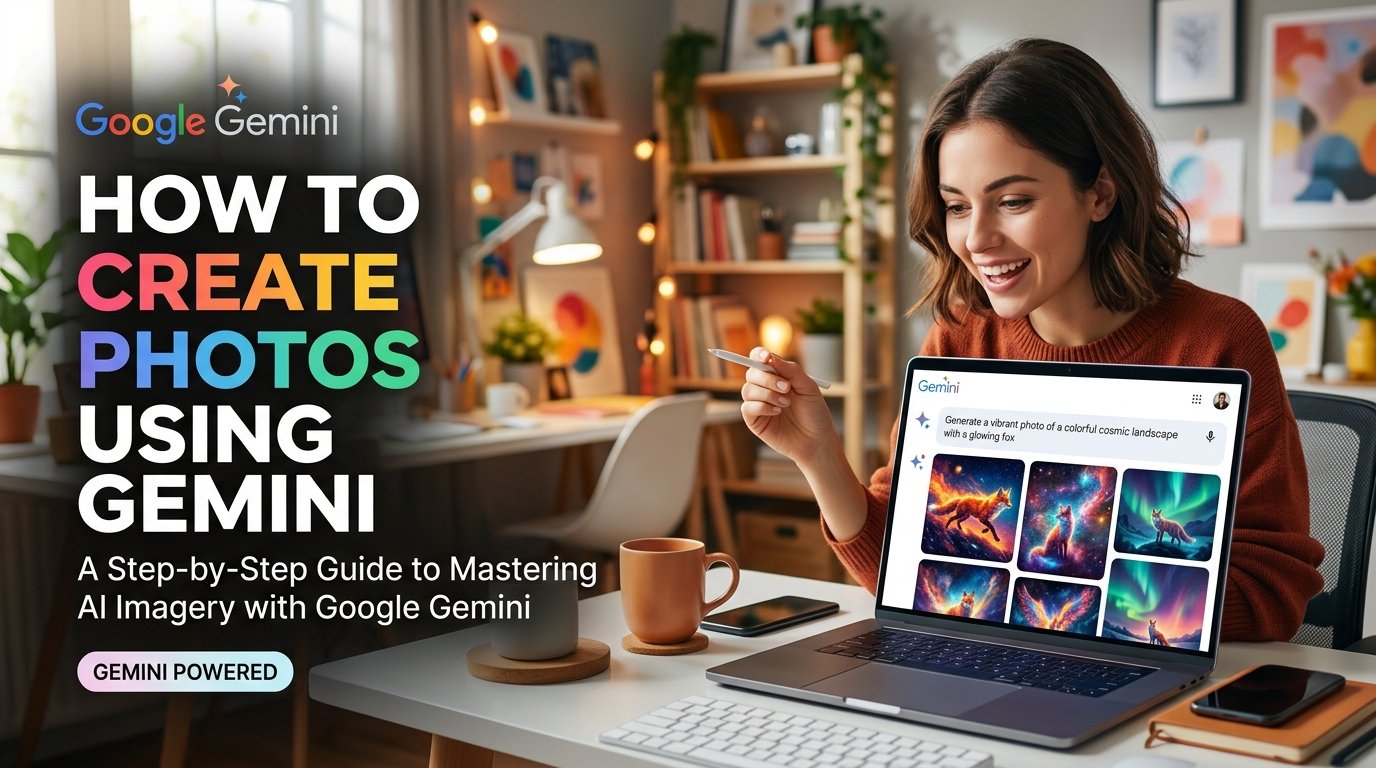
Have you ever wanted to transform an ordinary photo into a professional portrait, change your background without visiting a studio, or create beautiful AI images using only a few words?
Thank you for reading this post, don't forget to subscribe!Gemini AI Photo makes these creative tasks easier by allowing users to generate new images and edit existing pictures with text prompts.
Google Gemini has become a useful tool for content creators, students, bloggers, social media users, and small business owners. You can describe the image you want, upload a picture for editing, and refine the result through follow-up instructions. Google’s Gemini image models, including the Nano Banana family, power its image generation and editing capabilities.
In this guide, you will learn how to use Gemini AI Photo, discover useful prompts, explore photo editing ideas, and understand how to create better images for social media, websites, and personal projects.
What Is Gemini AI Photo?

Gemini AI Photo refers to using Google’s Gemini AI tools to generate images from text descriptions or modify existing photographs. Instead of relying entirely on traditional editing software, you can explain your requirements in everyday language.
For example, you can ask Gemini to:
- Create a realistic professional portrait.
- Change the background of a photograph.
- Try different clothing styles in a portrait.
- Generate cinematic or artistic images.
- Create product photography for an online store.
- Design illustrations and featured images for blog posts.
- Make targeted changes to an image while preserving important details.
The available features depend on your account, region, selected model, and usage limits. You can explore image generation through the official Gemini website.
Key Features of Gemini AI Photo
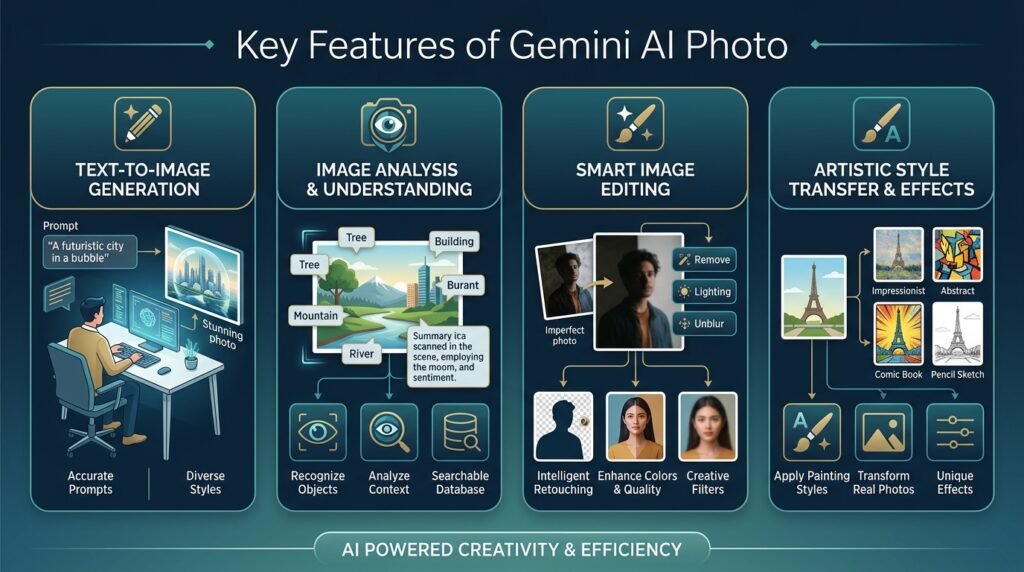
1. AI Image Generation
One of the most useful features is the ability to create images from written descriptions. You do not need to take a photograph of every subject you want to illustrate.
For example, you can write:
“Create a photorealistic image of a modern home office with a laptop, a desk lamp, green plants, natural window light, and a clean minimalist design.”
Gemini interprets the description and generates an image based on the available model’s capabilities.
This feature can help bloggers, students, designers, and social media creators develop original visual concepts.
2. AI Photo Editing
Gemini can also edit an uploaded photograph. You can describe the change you want instead of manually adjusting every editing tool.
Examples include changing a background, removing distracting objects, improving the visual atmosphere, or adding an element to a scene.
For example:
“Replace the messy background with a clean, modern office. Keep my face, facial features, hairstyle, and natural skin texture unchanged.”
For the best results, specify which parts should change and which should remain untouched.
3. Professional Portrait Creation
Professional portraits are popular among people who need profile pictures for LinkedIn, websites, portfolios, and other professional platforms.
You can upload a suitable photograph and request a more professional appearance without changing your identity.
Example prompt:
“Transform this photograph into a professional corporate portrait. Add a navy-blue formal outfit, a soft neutral background, natural studio lighting, realistic skin texture, and sharp photographic detail. Preserve my original facial features and expression.”
Always review the output carefully because AI editing may introduce small differences in facial details, clothing, or proportions.
4. Background Replacement
Background replacement is useful when you want to improve a photograph without taking another one.
You can replace an ordinary room with a studio, office, garden, city street, or other setting.
For example:
“Keep the person in the foreground unchanged and replace the background with a modern office interior. Match the lighting and shadows so the final photograph looks natural.”
This feature is useful for profile photographs, promotional graphics, and creative projects.
5. Creative Styles and Visual Effects
Gemini can help create images in different visual styles, depending on the model and prompt. These may include realistic photography, watercolor illustrations, cinematic scenes, cartoon artwork, and other creative treatments.
For example, you can transform a landscape into a watercolor painting or create a dramatic cinematic version of a personal photograph.
The key is to describe the style clearly rather than simply writing “make it beautiful.”
How to Create Photos With Gemini AI
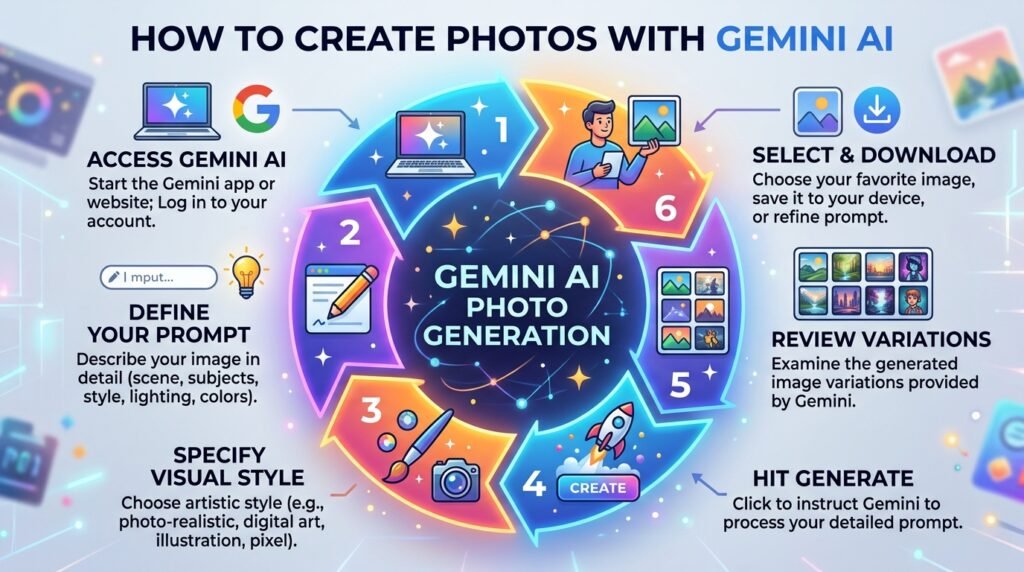
You can start creating images using the Gemini web app or a supported mobile experience.
Step 1: Open Google Gemini
Visit gemini.google.com and sign in with your Google account. Check that image generation is available for your account and region.
Step 2: Select the Image Creation Option
Open the available image creation feature or enter a request asking Gemini to generate an image. The interface and model choices may vary.
Step 3: Write a Clear Prompt
Describe the subject, background, lighting, composition, and visual style you want.
A weak prompt might say:
“Make a good picture.”
A stronger prompt would say:
“Create a realistic photograph of a young professional sitting at a wooden desk in a modern office. Use soft daylight, a neutral background, natural skin texture, balanced composition, and professional corporate photography.”
Detailed instructions generally give the model more useful information to work with.
Step 4: Generate the Image
Submit your prompt and wait for the image to be generated. Review the result to see whether it matches your requirements.
Step 5: Refine the Result
If the first image is not satisfactory, provide a follow-up instruction.
For example:
“Make the lighting softer, reduce the background clutter, and keep the subject’s face and clothing unchanged.”
You can refine the image through multiple conversational edits, although results may vary.
Step 6: Download and Use Your Image
When you are satisfied, use the available download option to save the image. Before publishing it, check the image quality, spelling in any text, and whether the result accurately represents what you intend to communicate.
10 Best Gemini AI Photo Prompts to Copy and Use
The following prompts are starting points. Replace the details in brackets to suit your needs.
1. Professional Portrait Prompt
“Create a photorealistic professional portrait using my uploaded photo as the reference. Preserve my facial identity, natural skin texture, hairstyle, and expression. Add professional clothing, soft studio lighting, a clean neutral background, realistic shadows, and high photographic detail.”
2. Cinematic Portrait Prompt
“Transform my uploaded photo into a cinematic portrait with dramatic but natural lighting, a softly blurred background, realistic skin texture, balanced contrast, and professional color grading. Keep my facial features recognizable and avoid excessive retouching.”
3. Instagram Profile Photo Prompt
“Create a stylish social media profile photograph based on my uploaded picture. Use a clean background, flattering natural light, a well-composed head-and-shoulders crop, realistic details, and a modern editorial photography style. Preserve my original identity.”
4. Luxury Fashion Photo Prompt
“Create an editorial fashion photograph based on my uploaded photo. Add an elegant, well-fitted outfit, a sophisticated architectural background, soft directional lighting, realistic fabric textures, and premium magazine-style photography. Keep my face and body proportions natural.”
5. Traditional Pakistani Outfit Prompt
“Create a realistic fashion portrait using my uploaded photo as a reference. Dress the subject in an elegant traditional Pakistani shalwar kameez with refined embroidery and tasteful colors. Use a beautiful outdoor courtyard, warm natural light, realistic fabric details, and professional portrait photography. Preserve the subject’s facial identity.”
6. Nature Background Prompt
“Keep the person in my uploaded photograph recognizable and replace the background with a beautiful green garden featuring trees, flowers, and soft morning sunlight. Match the lighting on the person with the new environment and maintain realistic edges, shadows, and proportions.”
7. Product Photography Prompt
“Create a professional product photograph of [product name]. Place the product on a clean studio surface with soft directional lighting, realistic shadows, crisp details, and a premium commercial photography style. Keep the product’s actual design, logo, color, and proportions accurate.”
8. AI Photo for a Website
“Create a professional website image about [topic]. Use a modern composition, realistic visual elements, balanced lighting, and a clean technology-inspired design. Leave clear negative space for a headline, avoid unnecessary text, and use a wide landscape composition suitable for a blog featured image.”
9. Travel Photography Prompt
“Create a realistic travel photograph featuring [destination or landscape]. Use natural lighting, realistic environmental details, balanced colors, and a professional travel photography composition. The scene should feel authentic rather than overly artificial.”
10. Old Photo Enhancement Prompt
“Carefully enhance this old photograph by improving clarity, reducing visible noise, correcting faded colors, and balancing brightness. Preserve the person’s original facial features, expression, clothing, and historical appearance. Do not invent missing details or change the identity of the subject.”
Prompt tip: Tell Gemini what you want changed, what must remain unchanged, and what style you prefer. This simple approach makes your instructions more precise.
Gemini AI Photo Ideas for Different Users
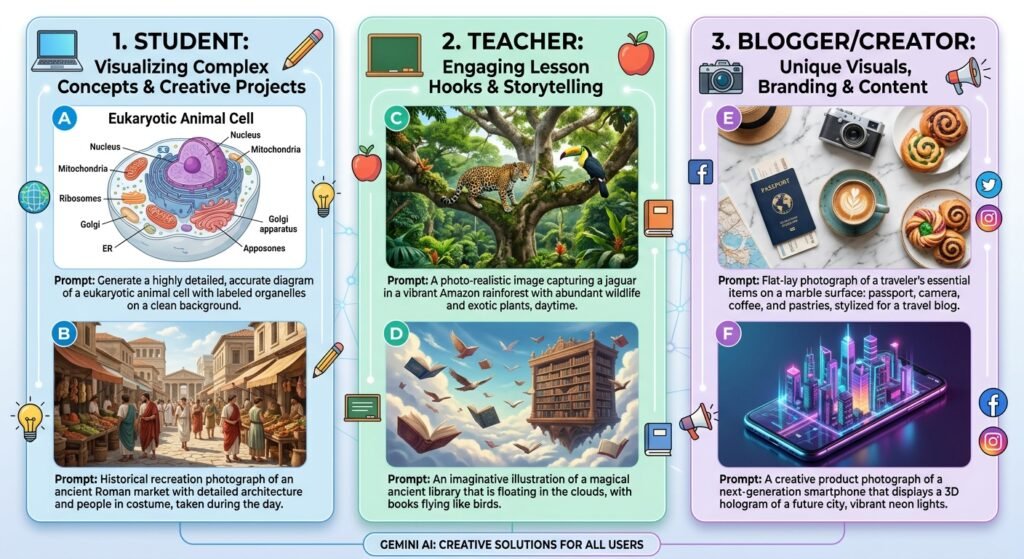
Different users can benefit from AI-generated images in different ways.
For Students
Students can create educational illustrations, project covers, presentation visuals, and diagrams. They should verify any information included in generated graphics before using it in academic work.
For Bloggers and Website Owners
Bloggers can create featured images, illustrations, and supporting visuals for their articles. For example, a technology website can create an image showing AI tools, laptops, digital marketing, or online learning.
Original visuals can improve the appearance of an article, but they do not automatically improve search rankings. The image should be relevant, useful, and properly optimized.
For Social Media Creators
Creators can experiment with profile pictures, themed posts, campaign graphics, and creative portraits. Consistent prompts can help maintain a similar visual style across multiple posts.
For Small Businesses
Small businesses can use AI images to develop product concepts, promotional graphics, and marketing materials. However, product images should accurately represent the actual item being sold. Do not use an AI-generated representation that misleads customers about a product’s features or appearance.
Gemini AI Photo vs. Traditional Photo Editing
Traditional editing software often gives users detailed manual control over layers, colors, selections, and retouching. Gemini offers a more conversational approach in which users describe the desired result.
The two approaches can complement each other.
For instance, you could use Gemini to develop a background or create an initial image, then use a traditional editor to adjust the crop, typography, layout, and final colors.
Gemini is convenient for people who prefer describing an edit in plain language. Traditional editors may be more suitable when precise pixel-level adjustments or specialized professional workflows are required.
Tips for Getting Better Results From Gemini AI Photo
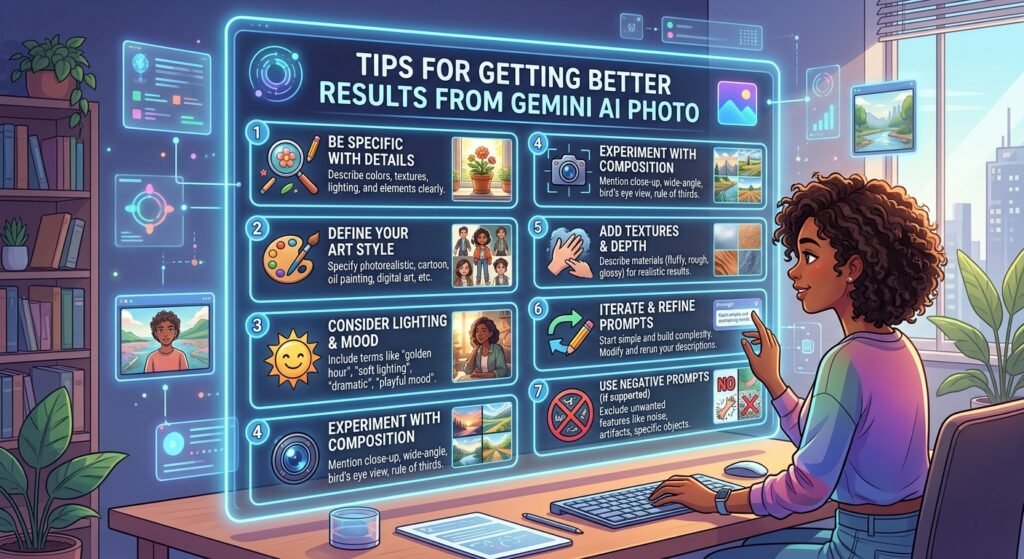
Follow these suggestions to improve your image prompts:
Be specific about the subject. Describe the person, object, scene, or concept you want to create.
Mention the composition. Explain whether you want a close-up portrait, full-body photograph, overhead product shot, or wide landscape.
Describe the lighting. Terms such as soft daylight, studio lighting, golden-hour sunlight, and dramatic side lighting help communicate your visual goal.
Choose a clear style. Specify realistic photography, editorial fashion, watercolor illustration, or another suitable style.
Protect important details. When editing a personal photo, explicitly ask Gemini to preserve the face, expression, hairstyle, and other features that matter to you.
Make small changes first. If an image is nearly correct, request a specific adjustment instead of rewriting the entire prompt.
Check the final result. Inspect hands, facial features, text, product details, shadows, and background edges before publishing.
Google also recommends describing the subject, composition, action, location, and style in image prompts.
Is Gemini AI Photo Free?
Gemini image generation may be available without a paid subscription, but access, daily limits, model selection, and output quality can vary by account, location, and current Google policies. Some advanced capabilities may require an eligible paid Google AI plan.
Before subscribing, check the options available in your account and decide whether the additional features are worth the cost for your needs.
For users in Pakistan, availability may differ from features offered in other countries. Do not assume that every feature demonstrated in an online tutorial is available to every account.
Is Gemini AI Photo Safe to Use?
Gemini AI Photo can be a useful creative tool, but responsible use is important.
- Upload only photographs you have permission to use.
- Avoid sharing sensitive personal information or private images unnecessarily.
- Obtain consent before editing or publishing another person’s photograph.
- Do not create misleading images intended to impersonate someone or deceive an audience.
- Review Google’s terms and applicable content policies before publishing generated material.
- Check image licensing and any relevant platform or client requirements for commercial projects.
Google states that images generated using its native Gemini image tools include an invisible SynthID digital watermark. This is intended to help identify AI-generated content, although it does not replace responsible labeling or verification.
Frequently Asked Questions About Gemini AI Photo
1. What is Gemini AI Photo used for?
Gemini AI Photo can be used to generate images from text prompts and edit existing pictures. Common applications include professional portraits, background changes, creative artwork, product visuals, and blog images.
2. Can I edit my own photo using Gemini AI?
Yes. Where image editing is available in Gemini AI Photo, you can upload a photograph and describe the changes you want. You can request a different background, clothing style, lighting, or other edits.
3. Can Gemini AI create realistic photos?
Gemini can generate realistic-looking images and portraits. However, results are not always perfect, and some images may contain visual errors or details that do not accurately reflect reality.
4. How do I write a good Gemini AI photo prompt?
Describe the subject, setting, composition, lighting, style, and important details to preserve to Gemini AI Photo. Clear instructions are generally more helpful than short, vague requests.
5. Can I use Gemini AI photos on my website?
You may be able to use generated images on your website by using Gemini AI Photo, subject to Google’s terms, applicable laws, and any relevant rights or licensing restrictions. Review the output for accuracy and suitability before publishing.
6. Is Gemini AI Photo available on mobile?
Gemini AI Photo is available through supported mobile experiences as well as its web app. Exact image generation and editing options depend on your device, account, region, and current feature availability.
7. Can Gemini AI change the background without changing my face?
You can instruct Gemini AI Photo to preserve your facial features while changing only the background. However, the result may not be exact, so compare the edited image with your original before using it.
8. Is Gemini AI better than traditional photo editing apps?
It depends on your needs. Gemini AI Photo is convenient for conversational image creation and edits, while traditional editing software can offer greater manual control over fine details.
Conclusion
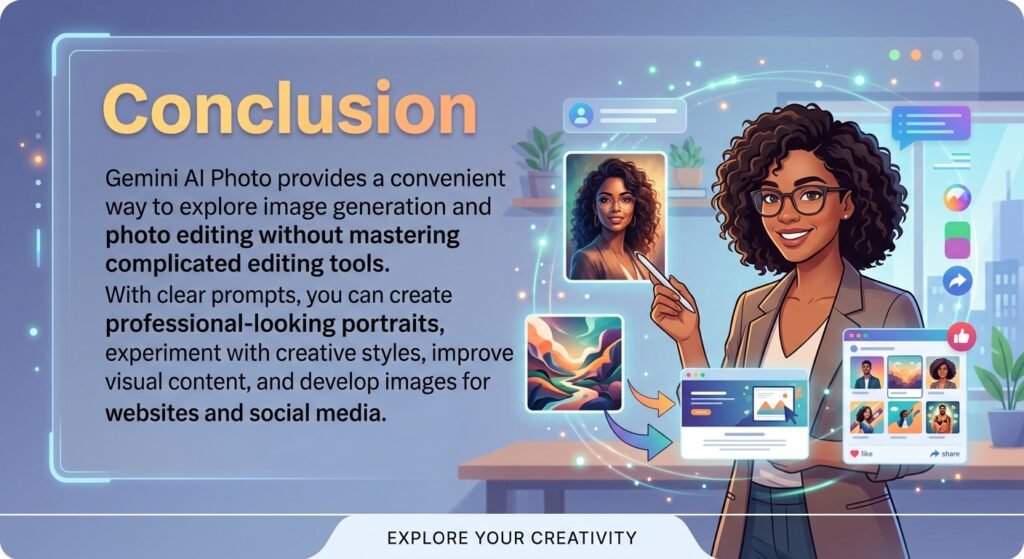
Gemini AI Photo provides a convenient way to explore image generation and photo editing without mastering complicated editing tools. With clear prompts, you can create professional-looking portraits, experiment with creative styles, improve visual content, and develop images for websites and social media.
The most effective approach is to start with a clear idea, describe the desired result, and refine the image through specific follow-up instructions. Always review the final image for accuracy, privacy, and suitability before publishing it.