How to Take a Screenshot on Any Laptop is one of the easiest ways to save information, share an error message, capture an online receipt, or keep a copy of something displayed on your screen. However, the keyboard shortcuts are different depending on whether you use Windows, macOS, ChromeOS, or Linux.
Thank you for reading this post, don't forget to subscribe!The good news is that you usually don’t need to install any extra software. Most laptops have built-in screenshot tools.
In this guide, you’ll learn the easiest ways to capture the full screen, a single window, or a selected area.
Quick screenshot shortcuts for every laptop
How to Take a Screenshot on Any Laptop:
Note: Keyboard layouts and shortcuts can vary by laptop model, operating system version, and external keyboard.
| Operating system | Shortcut | What it does |
|---|---|---|
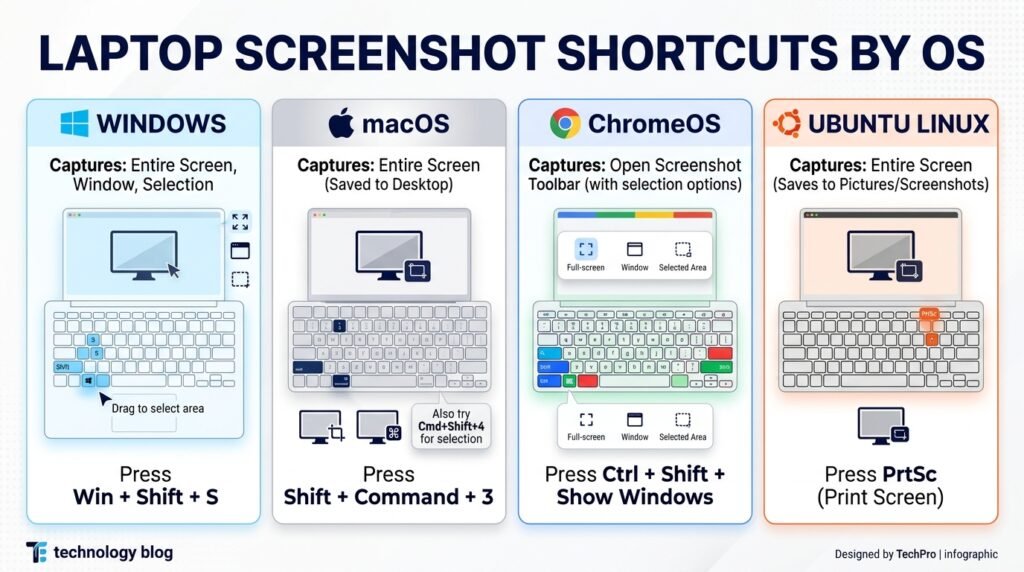
| Windows 10/11 | Win + Shift + S | Select an area to capture |
| Windows 10/11 | Win + PrtScn | Save a full-screen screenshot |
| Mac | Shift + Command + 3 | Capture the entire screen |
| Mac | Shift + Command + 4 | Capture a selected area |
| Chromebook | Ctrl + Shift + Show Windows | Open Screen Capture |
| Ubuntu Linux | PrtSc | Open the screenshot interface |
1. How to take a screenshot on a Windows laptop
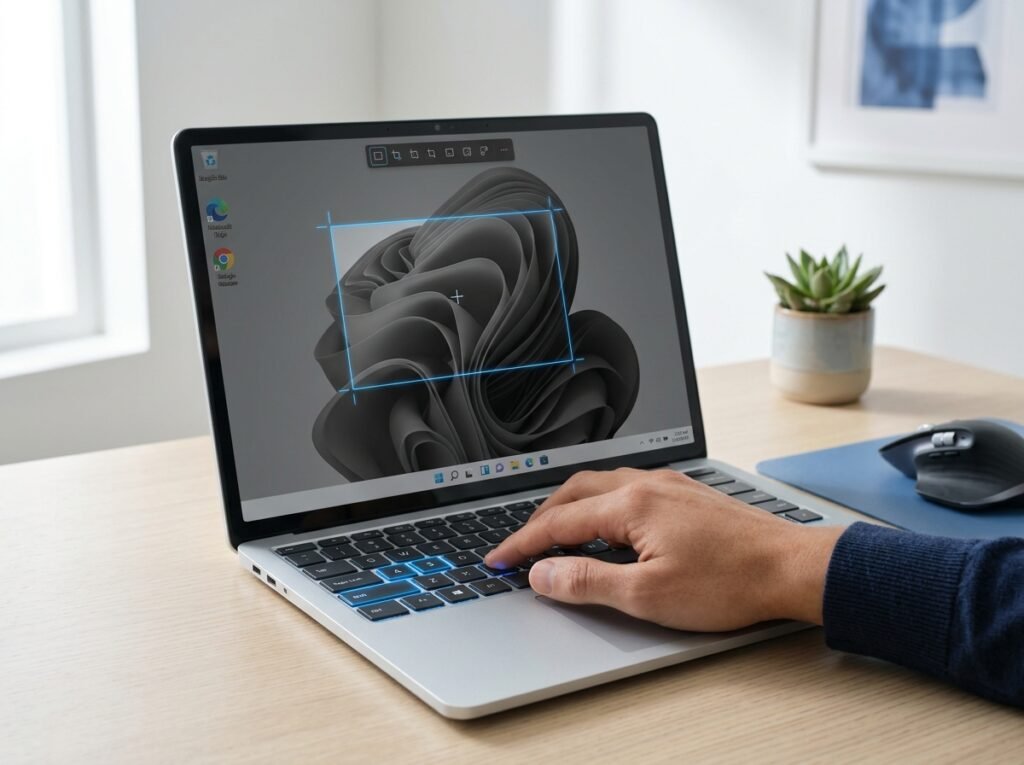
Windows laptops from Dell, HP, Lenovo, Acer, ASUS, and other brands usually support several screenshot methods.
Method 1: Use Windows + Shift + S
This is one of the most useful screenshot shortcuts on Windows 10 and Windows 11. Microsoft Support+1
Press these keys together
Win + Shift + S
- Open the screen you want to capture.
- Press
Windows + Shift + S. - Choose the rectangular, window, full-screen, or freeform capture option shown.
- Select the area you want to capture.
- Click the screenshot notification to edit or save the image.
The captured image is generally copied to your clipboard, so you can also paste it directly into Word, Paint, an email, or a chat using Ctrl + V.
Method 2: Capture and save the entire screen
- Press
Windows + PrtScn. - Wait for the screen to briefly dim, if supported.
- Open File Explorer.
- Navigate to Pictures → Screenshots.
Your screenshot is normally saved as a PNG image.
Method 3: Capture only the active window
If you want to capture just one application rather than your entire desktop:
- Click the window you want to capture.
- Press
Alt + PrtScn. - Open Paint or another image application.
- Press
Ctrl + Vand save the image.
What if the PrtScn key doesn’t work?
Some laptops share the Print Screen function with another key. Try Fn + PrtScn, or use Fn + Windows + Space on supported keyboards. You can also open Snipping Tool from the Windows Start menu. Microsoft Support+1
2. How to take a screenshot on a MacBook
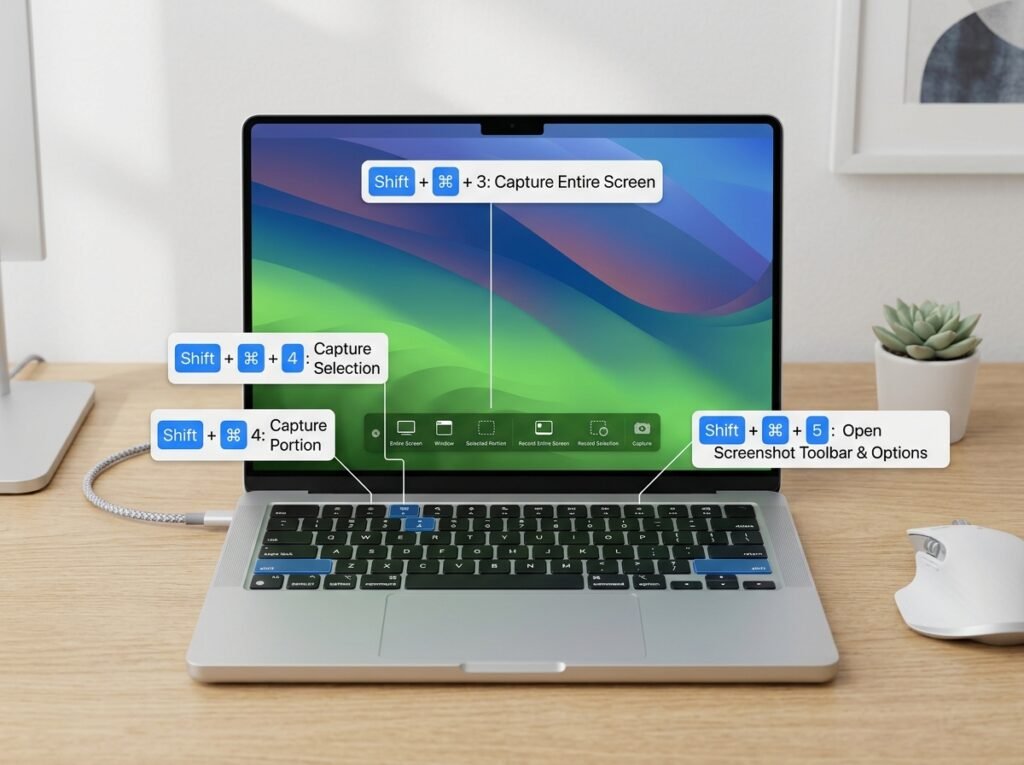
MacBook Air and MacBook Pro computers have built-in screenshot shortcuts. You can capture the full display, a selected section, or a particular window.
Method 1: Capture the entire screen
Press:
Shift + Command + 3
Captures the entire screen.
The screenshot is normally saved to your desktop unless you’ve changed the save location.
Method 2: Capture a selected area
Press:
Shift + Command + 4
Select and capture a specific part of the screen.
Move your pointer to select the desired area, then release the mouse or trackpad to take the screenshot.
Method 3: Open the screenshot toolbar
Press Shift + Command + 5.
This opens the screenshot controls, where you can choose a full-screen capture, window capture, selected-area capture, or screen recording. It’s especially useful if you want more control over where screenshots are saved.
3. How to take a screenshot on a Chromebook
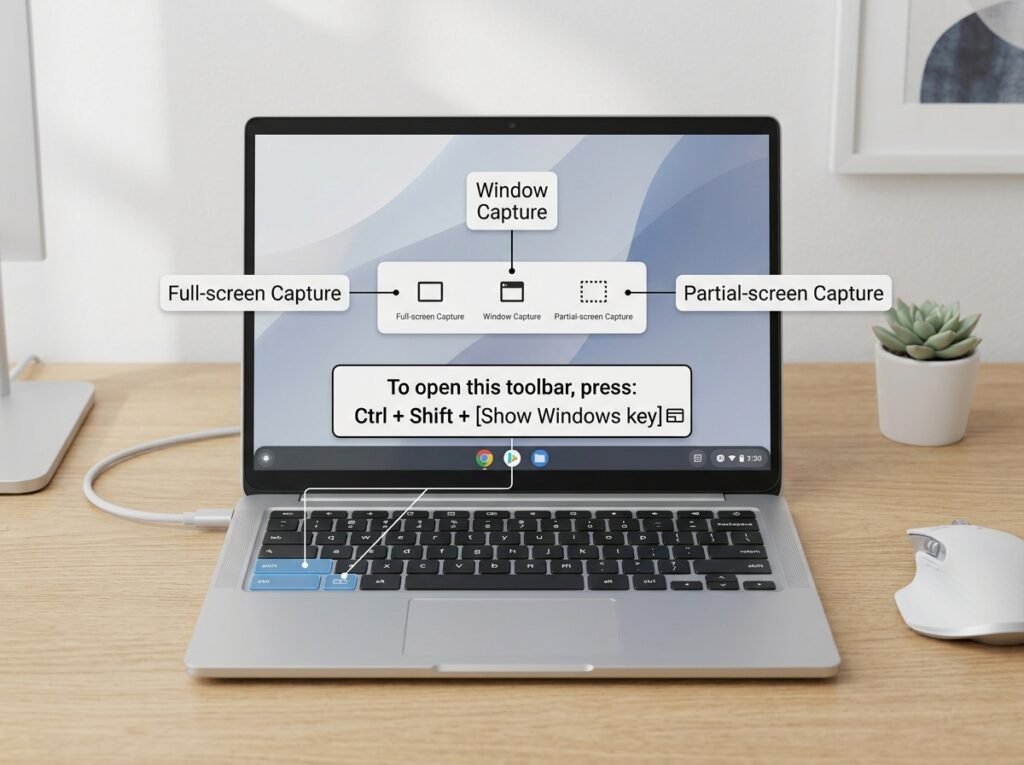
Chromebooks use ChromeOS rather than Windows. Their built-in Screen Capture tool makes it easy to capture all or part of the screen.
Method 1: Use the keyboard shortcut
Press:
Ctrl + Shift + Show Windows
Opens the Screen Capture tool.
The Show Windows key usually looks like a rectangle with lines beside it. On some Chromebook keyboards, a dedicated Screenshot key is available instead.
Follow these steps:
- Press the screenshot shortcut.
- Select screenshot mode.
- Choose full screen, partial screen, or window capture.
- Capture your desired content.
- Open the screenshot from the notification or your saved files.
Google notes that screenshots are also copied to the clipboard, so you can paste them into other applications. Chromebook Help+1
Method 2: Use the Screen Capture menu
If the keyboard shortcut doesn’t work:
- Click the clock in the bottom-right corner.
- Open Screen Capture in Quick Settings.
- Select the screenshot option.
- Choose the area or window you want to capture.
If you’re using an external keyboard without a Show Windows key, try Ctrl + Shift + F5, as supported by your setup.
4. How to take a screenshot on a Linux laptop
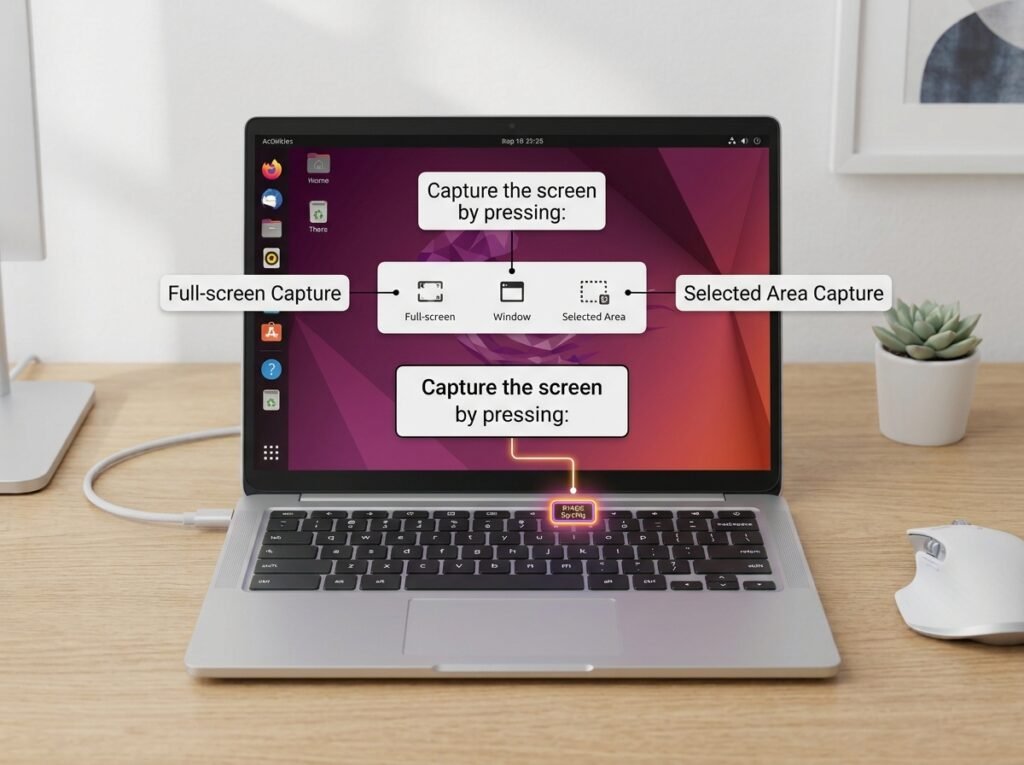
Linux supports screenshots through desktop tools and keyboard shortcuts. The exact method depends on whether you’re using Ubuntu, Linux Mint, Fedora, or another distribution.
Method 1: Use the Print Screen key
On many Ubuntu installations:
- Press
PrtScorPrint. - Choose the full screen, a window, or a selected area.
- Capture the screen.
- Save or copy the image as needed.
Recent Ubuntu versions provide an integrated screenshot interface. Screenshots are commonly saved in the Pictures/Screenshots folder. Ubuntu Documentation
Method 2: Use common Linux shortcuts
| Shortcut | Typical action |
|---|---|
PrtSc | Open screenshot interface or capture the screen |
Alt + PrtSc | Capture the active window |
Shift + PrtSc | Capture the full screen |
These shortcuts may vary by desktop environment and version. If they don’t work, search your system settings for Keyboard Shortcuts or Screenshot.
Method 3: Use a screenshot application
If you need additional editing features, you can use an application such as Flameshot, if it’s available for your Linux distribution. It can help you capture selected areas, add annotations, and highlight important details.
5. How to take a screenshot on a laptop without a Print Screen key
Some compact laptops and keyboards don’t have a dedicated PrtSc key. You can still capture screenshots using these alternatives:
- Windows: Press
Win + Shift + S. - MacBook: Press
Shift + Command + 3. - Chromebook: Use the dedicated Screenshot key or
Ctrl + Shift + Show Windows. - Ubuntu: Open the screenshot tool from the system menu.
On Windows, you may also need to hold the Fn key if the screenshot function is shared with another keyboard key.
6. Where are screenshots saved?
Knowing the keyboard shortcut is only half the job. You also need to know where to find the image.
| Laptop system | Usual save location |
|---|---|
| Windows | Pictures → Screenshots |
| MacBook | Desktop, unless changed |
| Chromebook | Downloads folder is a common default |
| Ubuntu Linux | Pictures → Screenshots |
The location may vary depending on your settings and the screenshot method. Some shortcuts copy an image to the clipboard instead of saving it directly.
7. How to fix common screenshot problems
If screenshots aren’t working on your laptop, try these simple solutions.
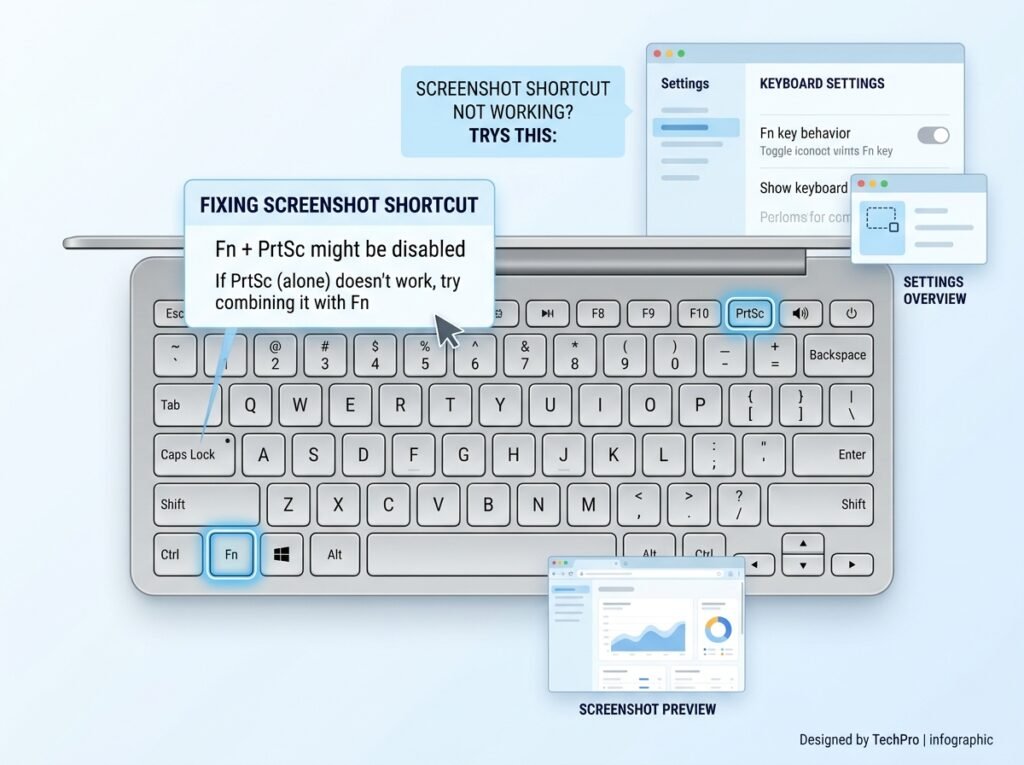
Problem 1: The screenshot shortcut does nothing
Try holding Fn along with the screenshot key. On Windows, you can also open Snipping Tool from the Start menu.
Problem 2: I can’t find my screenshot
Check your Pictures, Desktop, or Downloads folders. If you used a clipboard-only shortcut, open Paint or Word and press Ctrl + V.
Problem 3: My laptop keyboard has different keys
Look for labels such as PrtSc, PrtScn, Print Screen, or a small screenshot icon. You may need to use Fn with the key.
Problem 4: I need to capture only part of the screen
Use a selection tool instead of a full-screen shortcut. Windows Snipping Tool, macOS screenshot controls, Chromebook Screen Capture, and Linux screenshot utilities offer area selection.
8. Frequently asked questions (FAQs)
What is the easiest way to take a screenshot on a laptop?
For Windows, Win + Shift + S is a convenient option. On a MacBook, use Shift + Command + 3 for the full screen. Chromebook and Linux users can use their built-in Screen Capture or screenshot tools.
How do I take a screenshot on an HP, Dell, or Lenovo laptop?
Most HP, Dell, and Lenovo laptops running Windows support Win + Shift + S and Win + PrtScn. If your keyboard has no dedicated Print Screen key, use the Snipping Tool or check the Fn combinations supported by your model.
How do I screenshot only one window?
On Windows, click the window and press Alt + PrtScn. On a Mac, open Shift + Command + 5 and select window capture. Chromebook and Linux users can choose the window option in their screenshot tools.
Can I take a screenshot without installing software?
Yes. Windows, macOS, ChromeOS, and most desktop Linux systems include built-in screenshot functionality.
How do I paste a screenshot into WhatsApp or an email?
If your screenshot is copied to the clipboard, press Ctrl + V on Windows or in compatible applications. Otherwise, save the image first and attach it as a file.
What is the difference between a screenshot and a screen recording?
A screenshot is a still image of what appears on your display. A screen recording captures activity over time as a video.
Conclusion
Taking a screenshot on any laptop is simple once you know the correct shortcut. Windows users can start with Win + Shift + S, MacBook users can use Shift + Command + 3, Chromebook users can open Screen Capture, and Linux users can try PrtSc.
If one shortcut doesn’t work, check your keyboard layout, function-key settings, and operating system version. In most cases, the built-in screenshot tool is all you need.