Introduction to Google Drive
Thank you for reading this post, don't forget to subscribe!What Is Google Drive?
How Does Google Drive Work?
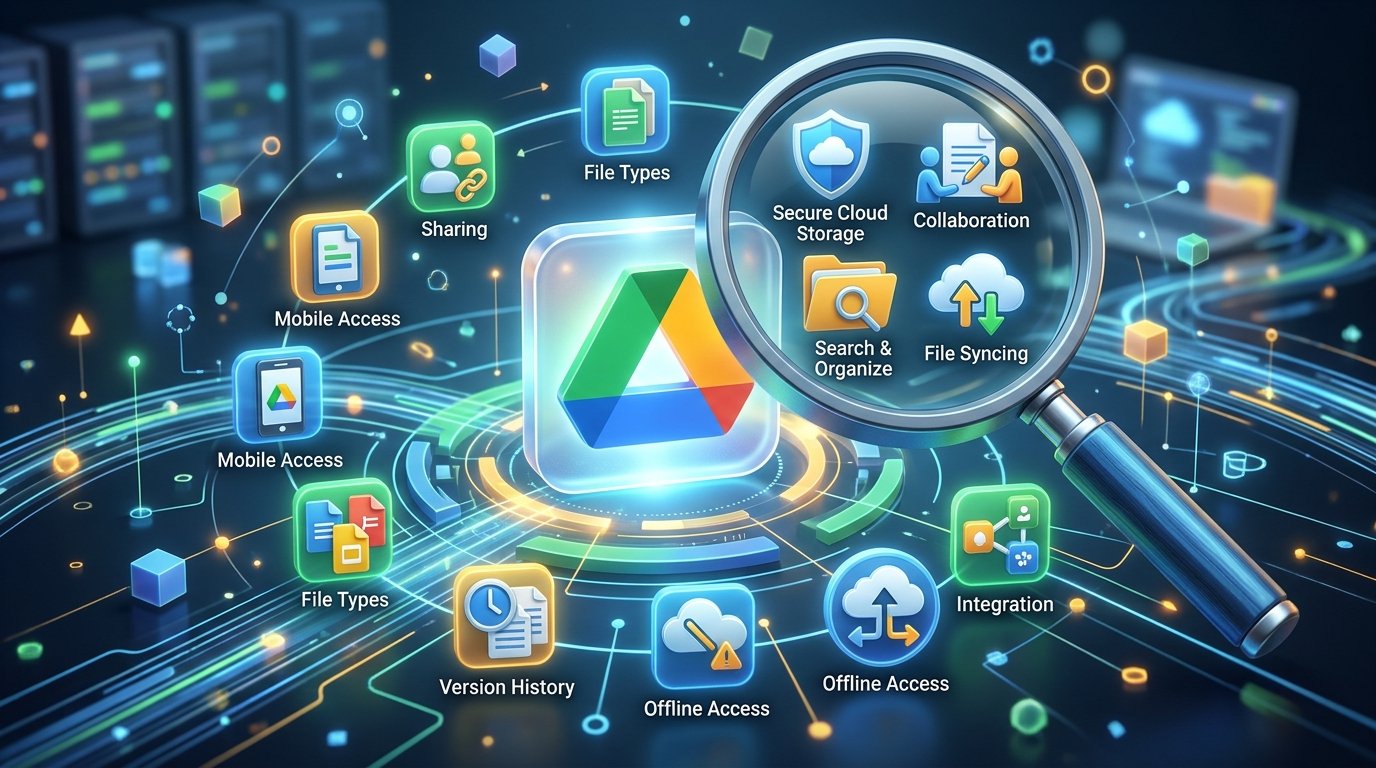
10 Powerful Features of Google Drive
7 Major Benefits of Google Drive
Common Uses of Google Drive
How to Use Google Drive for Beginners
How to Upload and Download Files
How to Share Files and Folders
Google Drive Storage Plans
Google Drive vs. Other Cloud Storage Services
Advantages and Disadvantages of Google Drive
Tips for Using Google Drive Effectively
Is Google Drive Safe for Storing Files?
Future of Cloud Storage and Google Drive
Frequently Asked Questions
Conclusion
Introduction
Managing files, papers, images, and critical information has become a crucial aspect of daily life in today’s digital environment. Digital files are frequently created and shared by professionals, employees, business owners, instructors, and students. However, when storage capacity is limited, it might be challenging to store everything on a computer or mobile device. Google Drive offers a helpful option in this situation.
What Is Google Drive?
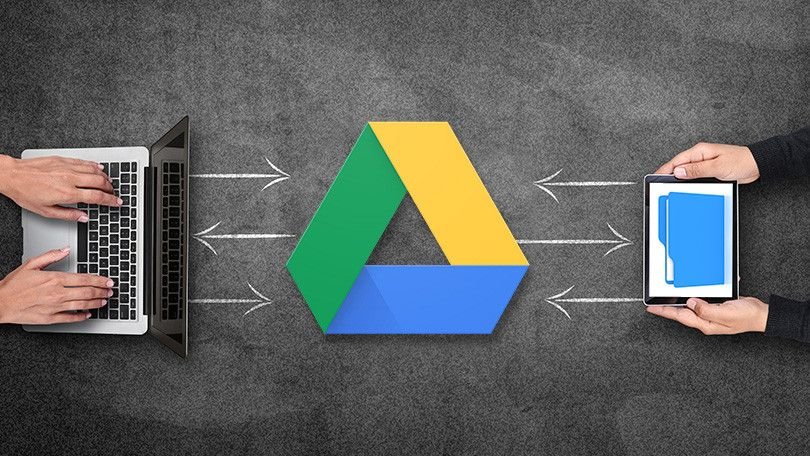
Google created Google Drive, an online cloud storage service. Instead of storing digital data just on a computer, smartphone, or external storage device, it enables users to save them on distant servers.
Numerous file types are supported by Google Drive, including:
Text files and documents
PDF documents
Pictures and pictures
Audio and video files
Word documents from Microsoft
Spreadsheets in Excel
Presentations using PowerPoint
Compressed files, such as ZIP file.
How Does Google Drive Work?
A file is accessible via the user’s Google account once it is uploaded. The file can then be accessed by the user on compatible devices.
The fundamental procedure is straightforward:
- Make a Google account or log in.
- Use a mobile app or web browser to access Google Drive.
- Make a new document or upload an existing one.
- Put the file in directories.
- Use a different compatible device to access it.
- When needed, distribute it to others.
- 10 Powerful Features of Google Drive
- Cloud File Storage
One of Google Drive’s most crucial features is cloud storage. Instead of relying just on the physical storage on their device, it enables users to save files online.
Principal benefits
Keep files on the internet.
Minimize reliance on local storage.
Access documents on several devices.
Organize digital data.
When necessary, share files.
- Easy File Sharing
Sharing files and folders with others is made simple with Google Drive.
Three permission levels are typically offered by Google Drive:
Viewer: Able to access and examine the file.
Commenter: Has the ability to view and remark on the file.
The editor has the ability to modify the file.
These permission settings are helpful for office work, corporate collaboration, and educational endeavors.
For instance, a teacher can use viewer access to share study notes with pupils. When team members need to amend a shared document, a project manager can provide them editor access.
Integration with Google Workspace
Google Drive and other Google apps are closely related. Users can produce and handle various file kinds without having to switch between numerous unconnected platforms thanks to this connection.
Key related applications consist of:
To write documents, use Google Docs.
For computations and spreadsheets, use Google Sheets.
For presentations, use Google Slides.
Google Forms for data collection.
For basic diagrams, use Google Drawings.
Real-Time Collaboration
Multiple users can collaborate in real time on a single compatible document.
This function is helpful for:
Assignments in groups.
Reports about business.
Collaborative projects.
Research papers.
Notes from the meeting.
Presentations are shared.
Automatic Saving
Automatic saving is part of Google Drive’s integration with Google Docs, Sheets, and Slides. When working on lengthy documents, tasks, or presentations, automatic saving is really helpful. Additionally, it can lessen the possibility of losing recent changes due to an unintentional browser tab closure or a brief disruption. Users should still make sure that their work has successfully synchronized, though, particularly if they are working offline or with a spotty internet connection.
File and Folder Organization
Without an appropriate method of organizing, handling hundreds of files might become complex. To assist users in organizing their data, Google Drive offers folders and more organizational options.
Users can make folders for a variety of uses, including:
Personal records.
assignments for school.
Reports about business.
Financial documents.
Images and videos.
Project files.
Offline File Access
With the help of this capability, users can work with specific documents without constantly connecting to the internet. If the necessary offline settings and application requirements are satisfied, changes can synchronize when the device reconnects.
Offline access is beneficial for:
Students who study while on the road.
Workers who are employed in places with poor internet.
Individuals working remotely to prepare paperwork.
Travelers that require crucial information.
File Version History
Users can examine previous modifications to supported files with the use of version history.
Users can benefit from version history:
Examine earlier modifications.
Determine editing errors.
Restore previous iterations.
Comprehend the creation of documents.
Oversee teamwork.
Mobile Application Access
Google Drive provides mobile applications for Android and iOS devices. Mobile access makes file management more flexible because users do not need to sit in front of a computer to perform basic tasks.
Access Files from Different Devices
Accessing files from numerous compatible devices is one of Google Drive’s main advantages .On PCs, tablets, and smartphones, users can access their Google accounts. This facilitates carrying on with work without the need for manual file transfers .For instance, a person can use a smartphone to review a report that they have prepared on a desktop computer.
- Convenient File Sharing
Google Drive makes it easier to share digital data. Documents can be sent by users via shareable links or email invitations. In order to regulate how recipients engage with their data, they can also limit access rights. Students sharing assignments, professors sharing notes, and companies exchanging papers with staff can all benefit from this.

- Better Team Productivity
Through linked apps like Docs, Sheets, and Slides, Google Drive facilitates teamwork. Without constantly providing one other new files, team members can participate in joint projects .This can lessen pointless communication and improve teamwork.
- Reduced Dependence on Physical Storage
Conventional storage devices, including external hard drives and USB drives, are susceptible to damage or loss. For daily file access, Google Drive offers an online storage solution that eliminates the need to carry physical storage devices .Cloud storage shouldn’t be used as the sole backup for priceless data, though. It makes sense to keep extra backups.
- Improved File Organization
Users of Google Drive can organize documents into folders and locate them using search features.
Those who frequently work with assignments, reports, presentations, and other digital items will find this useful. Everyday chores can be completed more quickly and effectively with an appropriate folder organization.
- Useful for Education and Learning
Google Drive can be used by educators and students to organize learning materials.
Presentations, assignments, and notes can all be stored by students. Teachers can cooperate with peers, gather work, and distribute educational materials.
Managing group projects is also made simpler by shared papers.
- Flexible Storage Options
With many Google accounts, Google offers a certain amount of storage for free; more storage can be obtained through qualified Google One plans.
Depending on their needs and available plans, users can select a suitable storage choice.
Google Drive is helpful for users with various storage requirements because of its adaptability.
Common Uses of Google Drive
Common uses include:
- Saving assignments and notes.
- Storing research documents.
- Sharing group project files.
- Preparing presentations.
- Accessing educational resources.
- Keeping important study materials organized.
For example, a university student can create separate folders for mathematics, science, English, and computer studies.
Google Drive for Businesses
Reports, spreadsheets, presentations, and administrative papers are routinely managed by businesses.
Teams can share these files with approved staff members and organize them with Google Drive.
Typical applications in business include:
Organizing office paperwork.
Project reports are shared.
Making financial spreadsheets.
Putting meeting notes in order.
Working together with staff members.
Keeping up shared company resources.
Google Drive for Personal Use
Individuals can use Google Drive to organize everyday digital information.
Examples include:
- Personal documents.
- Travel plans.
- Household records.
- Photographs.
- Important PDFs.
- Personal projects.
Google Drive for Freelancers
Freelancers frequently collaborate on several projects and clients.
They may save project papers, exchange finished work, and create distinct folders for each client with Google Drive.
A digital marketer might, for instance, separate project folders for campaign reports, visuals, research papers, and content calendars.
How to Use Google Drive for Beginners
Follow these steps to get started.
Step 1: Create or Sign In to a Google Account
Visit the official Google account website and create an account if you do not already have one.
If you already use Gmail, you can generally sign in to Google Drive using the same Google account.
Step 2: Open Google Drive
Visit the official Google Drive website:
Google DriveAfter signing in, you will see the Drive interface.
The interface includes areas for accessing your files, shared content, recent documents, and storage information.
Step 3: Upload Files
To upload a file:
- Open Google Drive.
- Select the New button.
- Choose File upload.
- Select a file from your computer.
- Wait for the upload to finish.
Your file will then appear in your Drive.
Step 4: Create a Folder
To organize files:
- Select New.
- Choose New folder.
- Enter a folder name.
- Select Create.
- Move related files into that folder.
Step 5: Create a Google Document
You can create a document directly inside Google Drive.
- Select New.
- Choose Google Docs.
- Start writing.
- Give your document a suitable name.
- Organize it in the appropriate folder.
Step 6: Share Your Files
To share a document, select the file and open its sharing options.
Enter the recipient’s email address or create a shareable link. Choose the appropriate permission level before sending access.
Always check that you are sharing the correct document with the intended people.
How to Upload and Download Files in Google Drive
Beginners should be familiar with two fundamental tasks: uploading and downloading.
File Uploading
Transferring a file from your device to Google Drive is known as uploading.
The fundamental upload procedure is:
Launch Google Drive.
Choose “New.”
Select Folder upload or File upload.
Choose the necessary content.
Await the completion of the upload.
Downloading Files
To download a file:
- Open Google Drive.
- Find the required document.
- Right-click the file on a computer or open its menu.
- Select Download.
- Choose a location if prompted.
Google Drive Storage Plans
Google One plans may provide additional storage and other benefits depending on the country, subscription, and current offer.
What Uses Google Account Storage?
Several types of content can use your available storage:
- Files uploaded to Google Drive.
- Email messages and attachments in Gmail.
- Photos and videos backed up to Google Photos under applicable storage rules.
- Certain other Google account data.
How to Manage Google Drive Storage
- Delete files you no longer need.
- Review large files.
- Empty the Drive trash when appropriate.
- Remove unnecessary email attachments.
- Review Google Photos storage.
- Consider a suitable Google One plan if you need more space.

To check available storage, visit:
Here is a general comparison:
Feature Google Drive OneDrive Dropbox
Cloud storage Yes Yes Yes
File sharing Yes Yes Yes
Collaboration Google Workspace Microsoft 365 Supported tools
Document editing Google Docs, Sheets, Slides Microsoft Office integration Third-party integrations
Mobile apps Yes Yes Yes
Free storage 15 GB with eligible Google accounts Limited free plan Limited free plan
Google Drive
Google Drive is particularly useful for people who already use Gmail, Google Docs, Google Sheets, and other Google services.
Microsoft OneDrive
OneDrive is closely connected with Microsoft’s ecosystem, including Windows and Microsoft 365 applications.
It can be a good choice for users who regularly work with Microsoft Word, Excel, and PowerPoint.
Dropbox
Dropbox is a cloud storage and file-sharing service that is well-known for its collaboration and file syncing capabilities. For people and companies who require online file management, it offers an additional choice.
Which service should you choose?
Your needs will determine the best option. OneDrive might be appropriate for people who rely significantly on Microsoft services, whereas Google Drive might be appropriate if you prefer Google’s apps. People who like Dropbox’s file-sharing and synchronization process could find it appealing.
Advantages and Disadvantages of Google Drive
Advantages
- Simple to use: Most novices can easily navigate its UI.
- Multi-device access: Users can view their files on mobile devices and desktops that are compatible.
- File sharing: You can share folders and documents with other users.
- Collaboration: Shared editing and teamwork are facilitated by connected Google apps.
- Online storage: You don’t have to rely solely on the internal storage of a device to keep files.
- Search feature: Rather than going through each folder by hand, users can search for files.
- Integration: Google Drive is compatible with a number of Google services.
Disadvantages
- Internet dependence: An internet connection is necessary for a number of online features.
- Limited free storage: Google services share the free storage allotment.
- Privacy considerations: Users need to be aware of how their data is shared and stored.
- Account access risks: It may be challenging to access stored data if you lose access to your Google account.
- Upload restrictions: Depending on internet speed and provider limitations, large files may take a long time to upload.
- Sharing errors: Files may be exposed to unauthorized individuals due to improper permissions.
- Tips for Using Google Drive Effectively
- Create Organized Folders
Create separate folders for different categories of files.
For example, students can organize documents by subject, while businesses can organize them by department or project.
- Use Clear File Names
Give files descriptive names so they are easy to identify.
Instead of naming a document “New Document 1,” use a meaningful title such as “Marketing Plan November 2026.”
- Review Sharing Permissions
Before sharing a file, check whether recipients should have viewer, commenter, or editor access.
Avoid giving editing permissions when someone only needs to read a document.
- Use Search Filters
Use Google Drive’s search options to locate files quickly.
You can narrow your search by file type, owner, or other available filters.
- Keep Important Files Backed Up
Google Drive provides online storage, but important files should not depend on a single copy.
Maintain additional backups of valuable documents, especially financial records, business information, and personal files.
- Protect Your Google Account
Use a strong, unique password and enable two-step verification.
Avoid signing in on untrusted devices and review your account’s security settings regularly.
- Remove Unnecessary Files
Review your Drive account occasionally and delete files that are no longer required.
This helps manage storage and keeps your account organized.
Is Google Drive Safe for Storing Files?
Google Drive has security mechanisms that are intended to safeguard user data. These consist of file-sharing rights, account security features, and encryption.
Take into account following procedures for increased security:
Make sure your password is strong and distinct.
Turn on two-step authentication.
Refrain from disclosing private documents in public.
Regularly check the permissions of files.
Watch out for dubious attachments and URLs.
Examine the gadgets linked to your Google account.
Steer clear of sensitive data on unreliable public computers.
For official information, visit:
Google Safety Center 13. Google Drive and Cloud Storage’s Future
As more digital information is produced by people and organizations, cloud storage is evolving.
While professionals and students rely more and more on online collaboration, businesses need dependable means to manage papers.
The future of cloud storage is probably going to be impacted by a number of changes.
Artificial Intelligence Integration
The use of artificial intelligence in digital productivity tools is growing.
AI-powered tools can make it easier for users to deal with papers, summarize content, and conduct information searches. Depending on the product, account, area, and subscription, Google’s AI features and availability may change.

Better Collaboration Tools
Online collaboration is becoming more and more crucial. It’s expected that cloud platforms will keep enhancing their project management, collaboration, and collaborative editing capabilities.
Stronger Security Features
Future enhancements could include improved administrative controls, threat detection, account security, and access management.
Enhanced Mobile Access
These days, smartphones and tablets are crucial tools for both business and education.
Cloud storage services will keep enhancing mobile experiences to make file management easier for users.
More Flexible Storage Solutions
Users will keep searching for storage options that fit their needs and budgets as digital files get bigger.
New combinations of collaboration tools, productivity apps, and storage may be available through cloud services.
As these technologies advance, Google Drive is probably going to continue to play a significant role in Google’s productivity environment.
Conclusion
For consumers, students, educators, and companies, Google Drive is a helpful cloud storage solution that facilitates digital file management. It offers search features, mobile access, file sharing, online storage, and automatic saving for compatible apps.
It is a useful solution for daily productivity because of its interaction with Google Docs, Sheets, Slides, and other services. Users can share project files, manage business documents, arrange assignments, and access data from various compatible devices.