- What Is Microsoft Access?
- How Microsoft Access Works
- Tables, Queries, Forms, and Reports
- 10 Powerful Features of Microsoft Access
- Benefits of Using Microsoft Access
- Common Uses of Microsoft Access
- Business, Education, and Inventory Management
- Microsoft Access vs. Microsoft Excel
- How to Create Your First Access Database
- Limitations and Challenges of Microsoft Access
- Best Practices for Microsoft Access Beginners
- The Future of Microsoft Access
- Conclusion
- Frequently Asked Questions
What Is Microsoft Access?
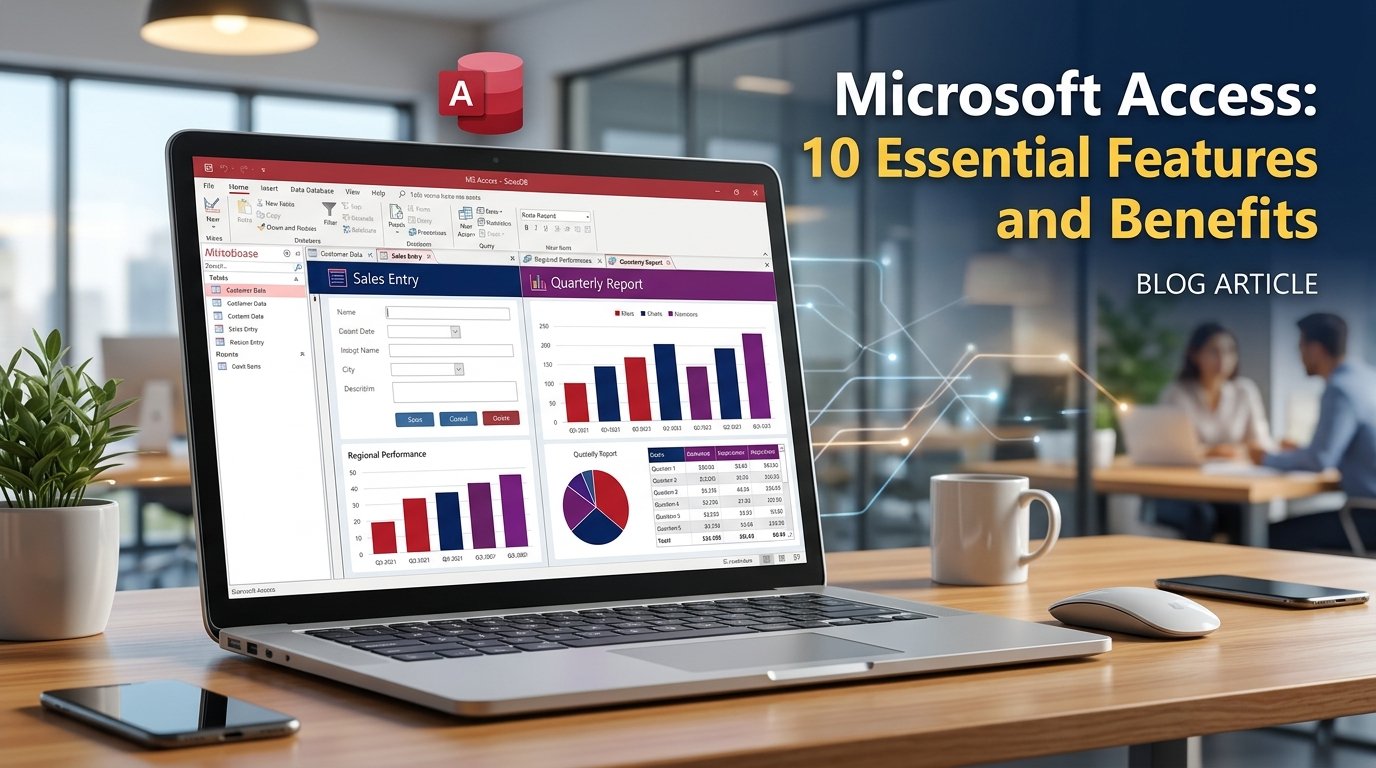
Microsoft created the database management program Microsoft Access. Through a structured database, it assists users in gathering, organizing, storing, retrieving, and analyzing data. In contrast to a simple document or spreadsheet, Access enables you to create linked tables, create forms for data entry, run queries to find certain records, and create reports to show the outcomes. People who need to manage information more methodically without creating a database application from start can benefit from these characteristics. Access, for instance, could be used by a school to arrange student records, test scores, attendance, and course information in a networked system.
Thank you for reading this post, don't forget to subscribe!
How Microsoft Access Works
Information is arranged into database objects that carry out various functions in order for Microsoft Access to function. Forms make it simpler to enter and examine records, tables contain the underlying data, queries retrieve or alter specific information, and reports present data in an organized manner. Users can carry out routine operations without having to manually search through several documents because of these items’ ability to cooperate within a single database application. A customer management database might, for example, keep order information in one table and customer information in another. A report can aggregate orders by date or customer, a form can provide client information, and a query can link the two tables.
Consider, for instance, that you are developing a database for library management. You may make a Members table with borrower information and a Books table with book titles, authors, and ISBNs. Books might be linked to members, and borrowing and return dates could be recorded in a loans table. A report may list the books that are currently on loan, a form could assist a librarian in registering a new loan, and a query could find volumes that are past due. Because each type of information has a specific function and may be joined when needed, this structure is more adaptable than keeping a single large list. As they gain experience with database design, novices might begin with a simple project and add additional tables and functionality.
10 Powerful Features of Microsoft Access
- Easy Database Creation
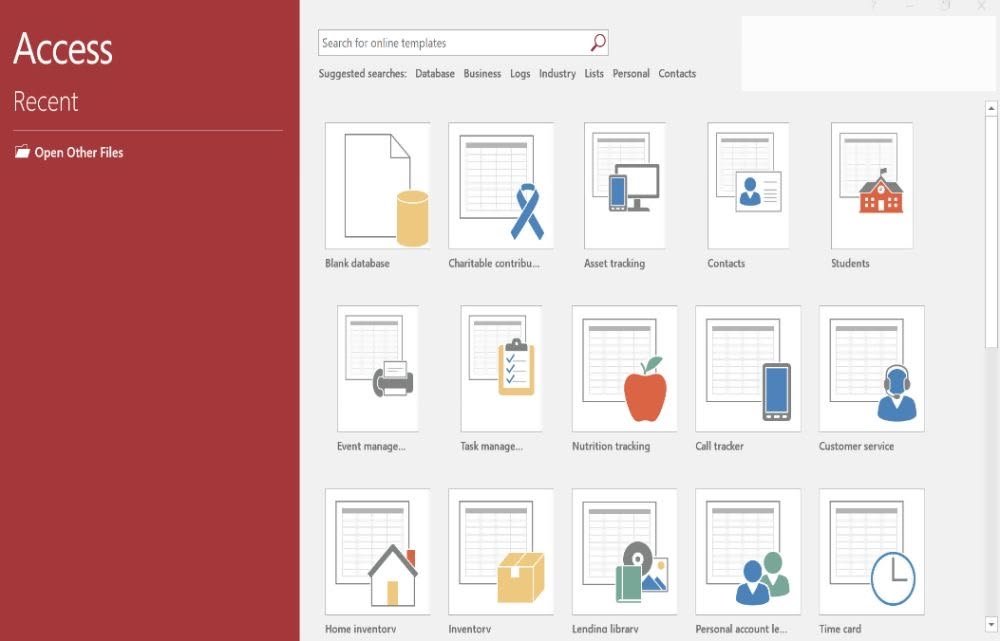
With Access, users can start with a blank database or build one from a template. Pre-made tables, forms, queries, and reports are examples of templates that provide novices with a helpful place to start. Building a simple application for contacts, inventory, or other routine chores may require less work as a result. After that, users can alter the database to suit their needs. Even while using a template can save time, it’s still crucial to go over the included fields and relationships before inputting crucial data.
- Structured Data Storage
A carefully structured database is easier to maintain than a collection of unrelated files, especially when information needs to be updated frequently. Access stores information in tables that can be designed around specific subjects. You can define field names and data types to store information more consistently. For instance, a product table might contain a product ID, product name, price, quantity, and supplier ID. Separate tables can be connected through relationships, helping to reduce unnecessary repetition.
- Powerful Query Tools
By using queries, users can obtain particular data without having to go through each entry by hand. The query architecture allows you to filter records, sort results, merge related tables, compute totals, and carry out additional tasks. While a teacher may obtain the data of students enrolled in a specific course, a store owner could use a query to identify products with low stock. SQL statements can be written by more experienced users to regulate the selection or processing of data. One of the best tools for converting stored data into helpful solutions is a query.
- User-Friendly Forms
Database records may be entered, viewed, and edited more easily with the help of forms. Users can work with fields arranged logically rather than just navigating through a large table. To assist users in effectively completing tasks, forms may have buttons, drop-down lists, validation rules, and other controls. An employee may be assisted in inputting a name, phone number, address, and customer ID, for instance, using a customer registration form. A database can be made more user-friendly with well-designed forms, especially for those who do not need to comprehend its internal workings.
- Professional Reports
Reports assist users in presenting database data in an understandable and structured manner. They can organize data for printing, group records, show totals, and assist with regular business evaluations. While a small firm would generate an inventory report or a monthly sales summary, a school might compile a list of students. When decision-makers require information in an easier-to-read format than a raw database table, reports are very helpful. The clarity of the report design and the quality of the underlying data determine how valuable they are.
- Relationships Between Tables
Relationships that link records from different tables are supported by Access. A customer ID, for instance, can link a client to many orders, enabling the database to preserve customer information apart from specific transactions. This structure facilitates more consistent updates and lessens redundant data. To identify records and link similar data, primary and foreign keys can be utilized. For novices, understanding relationships is crucial since a well-designed database requires more than just putting all of the data in one table.
- Integration With Other Data Sources
Excel workbooks and other databases are among the supported external sources from which Access can import or link data. When a company wishes to handle data in a more structured way but already has it saved on spreadsheets, this is helpful. Users may be able to import a copy of the data or connect to the original information, depending on the source. For specific business settings, Access may also establish connections with Microsoft Azure SQL and SQL Server. Certain connections call for further setup, subscriptions, or technical assistance.
- Automation With Macros and VBA
Users can automate monotonous processes with Visual Basic for Applications (VBA) and macros. When a button is clicked, a macro may launch a form, execute a query, or produce a report. Experienced users can create more specialized processes and business logic with VBA. An office database, for instance, might reduce the amount of repeated manual labor by automating typical stages in an order-processing workflow. Before learning programming, novices can first become familiar with the built-in tools and basic macros. To prevent unintentional modifications to crucial records, automation should always be thoroughly tested.

- Data Validation and Accuracy
To assist users in maintaining consistent data, Access offers field attributes and validation options. Data integrity can be supported by the selection of suitable data types, the requirement of specific fields, the establishment of relationships, and the setting of validation criteria. For instance, a mandatory client name field can prevent incomplete records, and a quantity field can be limited to appropriate integer values. Although many common errors can be detected by these controls before they propagate throughout a database, they are unable to completely prevent all potential problems. When many people enter data, it is very beneficial to have clear validation standards.
- Modern Charts and Reporting Capabilities
Charts that can assist users in visualizing data within forms and reports are supported by Access. Modern charting tools are included in Microsoft Access 2024 and Microsoft 365 updates; Microsoft has documented new chart types and enhancements for supported versions. Compared to only raw information, these visualizations can make trends, comparisons, and patterns easier to comprehend. A chart comparing monthly totals or a visual representation of product categories, for instance, could be included in a sales report. Users should refer to Microsoft’s installation instructions as the features that are available vary depending on the Access version and update channel.
Benefits of Using Microsoft Access
Microsoft Access’s ability to compile relevant data in an organized setting is one of its greatest advantages. Customers, products, suppliers, and orders don’t need to be kept in separate lists; instead, users can create linked tables and utilize forms and queries to get the data they require. This can lessen the need for repetitive data entry and improve the consistency of updates.A well-designed Access database can give a small firm a useful way to arrange daily operations without having to start from scratch with a custom database application. Without becoming expert programmers, novices can also create practical solutions with the use of templates and design tools.
The chance to acquire transferable skills is another advantage for novices. Concepts including database design, data types, primary keys, relationships, queries, and reporting are introduced when learning Access. Since many other database platforms rely on comparable concepts, these concepts are helpful outside of Access. It might be simpler for someone who knows how to organize a customer database to study SQL or investigate alternative database management systems in the future. While Access is not always the best option, it can be a useful tool for short, well-defined tasks and an efficient learning environment.
Common Uses of Microsoft Access
When information needs to be arranged, accessed, and displayed, Microsoft Access can help with a variety of tasks. The complexity of the data, the number of users, the level of security needed, and the organization’s growth goals all influence its applicability. The examples that follow demonstrate how various users might utilize Access to solve practical issues.
Business, Education, and Inventory Management
Small-business management: Access can be used by a small business to keep track of order data, supplier information, customer details, and service history. To find clients who require follow-up, a sales team may develop a form for entering new leads and employ questions. Reports might display outstanding orders or provide a monthly summary of sales. When a company has outgrown a simple spreadsheet but does not require a sizable, specially designed business system, this strategy may be helpful. However, proper access restrictions, backups, and sound database design should be used to safeguard important corporate data.
Education and student records: Access can be used by educational institutions, tutors, and training facilities to arrange student data, course enrollment, attendance logs, and test scores. While related tables keep track of enrollment and grades, other tables can hold student information and course specifics. A report can arrange student performance for evaluation, whereas a query can obtain the results for a single class. Before storing personal data, educational institutions must carefully consider privacy, permitted access, and legal laws. Although access can aid in record organization, proper information-handling procedures are still necessary.

Inventory and stock tracking: Access allows retailers and small warehouses to keep track of product names, stock levels, supplier information, prices, and reorder levels. Staff members can choose what to replenish by using a query to find goods whose quantities have dropped below a predetermined threshold. Recording new stock can be made easier with the use of a form. Whereas inventory can be summarized by category in a report. Users should set up explicit processes for documenting purchases, sales, returns, and stock adjustments in order to maintain the dependability of this system. The accuracy of an inventory database depends on the data that is entered into it.
Library and appointment management: Access could be used by a library to keep track of loans, return dates, member information, and book records. Instead, a service company might utilize it to manage booking status, customer contact details, and appointments. In either scenario, reports can help with daily planning, forms can make data entry easier, and queries can find items that are due or approaching. These illustrations highlight a crucial idea: When the information is organized well, and the workflow is thoroughly understood prior to database construction, Access functions at its best.
Microsoft Access vs. Microsoft Excel
Although they are both helpful Microsoft programs, Microsoft Access and Excel are built for various kinds of tasks. Excel is a spreadsheet program that is excellent for calculations, quick analysis, and adaptable tables and charts. Access is a relational database program that stores connected data in organized tables and offers methods for retrieving it via reports, forms, and queries. Both applications can perform some jobs, but the optimal option will rely on the quantity and format of the data as well as how users need to utilize it.
Feature Microsoft Access Microsoft Excel
| Feature | Microsoft Access | Microsoft Excel |
|---|---|---|
| Primary purpose | Building and managing databases | Calculations, spreadsheets, and data analysis |
| Data structure | Multiple related tables | Worksheets with rows and columns |
| Data entry | Custom forms and datasheets | Direct entry into cells and tables |
| Information retrieval | Database queries and filters | Filters, formulas, and other analysis tools |
| Relationships | Designed for relational data | Data can be connected using supported features |
| Reporting | Database reports and forms | Charts, tables, PivotTables, and print layouts |
| Best suited for | Structured records and small database applications | Calculations, analysis, and flexible data exploration |
| Learning curve | Requires understanding database concepts | Often easier for basic tasks |
Starting with a small, useful project makes it easier to create your first Microsoft Access database. Pick something familiar, like a student list, a personal book collection, or a small inventory, instead of attempting to create a whole business management system right away. Choose the data you need to store and the queries you want the database to respond to.
Beginner-friendly workflow
Step 1: Create a database
Open Microsoft Access on a compatible Windows PC. Select a suitable template or choose a blank desktop database, enter a file name, and create the database.
Step 2: Design your tables
Decide what information you need. For an inventory project, create fields such as ProductID, ProductName, Price, and Quantity. Use suitable data types for each field.
Step 3: Set up keys and relationships
Give each record a reliable identifier, such as Product ID. If your database contains related tables, define appropriate relationships and check that the linked fields match.
Step 4: Create queries and forms
Use queries to find particular records and forms to make entering or editing information easier. Start with one simple query and one form before adding advanced features.
Step 5: Build a report and test your database
Create a report that answers a useful question, enter sample records, test searches, and correct any design problems. Back up the database before using it for important information.
Limitations and Challenges of Microsoft Access
Microsoft Access has restrictions that users should be aware of before selecting it for critical work, despite the fact that it is helpful for many projects. First off, Access is not a universal solution for users who require a fully native database application on all operating systems because it is primarily a Windows desktop application. Second, careful preparation is necessary when using shared databases.
Best Practices for Microsoft Access Beginners
It is easier to learn Microsoft Access if you start with a few trustworthy database design concepts. Determine what each table represents first, and refrain from combining unrelated data into one table. Keep client information apart from order information, for instance, and link them using a suitable customer identification. Use primary keys to identify records, choose appropriate data types, and give fields meaningful names. Before adding a lot of actual data to a database that comprises connected tables, clearly establish the relationships and test them using sample data. Many issues can be avoided later with a little preparation at the outset.
The Future of Microsoft Access
Cloud computing, automation, and artificial intelligence are also transforming the broader database landscape. Systems that facilitate collaboration, link data from many sources, and safeguard data in increasingly complex situations are becoming more and more necessary for organizations. For some tasks, Access can still be a useful front-end tool, particularly when linked to a suitable database backend. It should not be mistaken for a universal web-based database platform, though. In situations when new web and mobile applications are needed instead of outdated Access web apps, Microsoft’s counsel suggests using other technologies, such as Power Apps.
Conclusion
Microsoft Access is an effective database management program that may be used to improve daily data handling activities, create bespoke applications, and organize information. Structured tables, adaptable queries, user-friendly forms, expert reports, linkages between records, data validation, and automation are some of its salient characteristics. Because of these features, it can be used for small-scale database applications such as inventory monitoring, customer management, educational records, and library systems.
Frequently Asked Questions (FAQs)
- What is Microsoft Access used for?
Microsoft Access is used to create and manage databases. It helps users store information in tables, retrieve records with queries, enter data through forms, and present results in reports. Common applications include inventory tracking, customer management, student records, and appointment scheduling.
- Is Microsoft Access easy to learn for beginners?
Yes, beginners can learn Microsoft Access by starting with templates and simple database projects. Learning tables, fields, records, queries, forms, and reports provides a strong foundation. More advanced features, such as SQL and VBA, can be studied later.
- What are the main features of Microsoft Access?
Its main features include database templates, tables, queries, forms, reports, table relationships, data import and linking, validation rules, macros, VBA automation, and charting capabilities. The features available can vary by version and configuration.
- What is the difference between Microsoft Access and Excel?
Excel is primarily designed for spreadsheets, calculations, charts, and flexible data analysis. Access is designed to manage structured information across related tables and provide database queries, forms, and reports. Excel is often better for calculations, while Access may be more suitable for managing connected records.