How to fix laptop overheating?
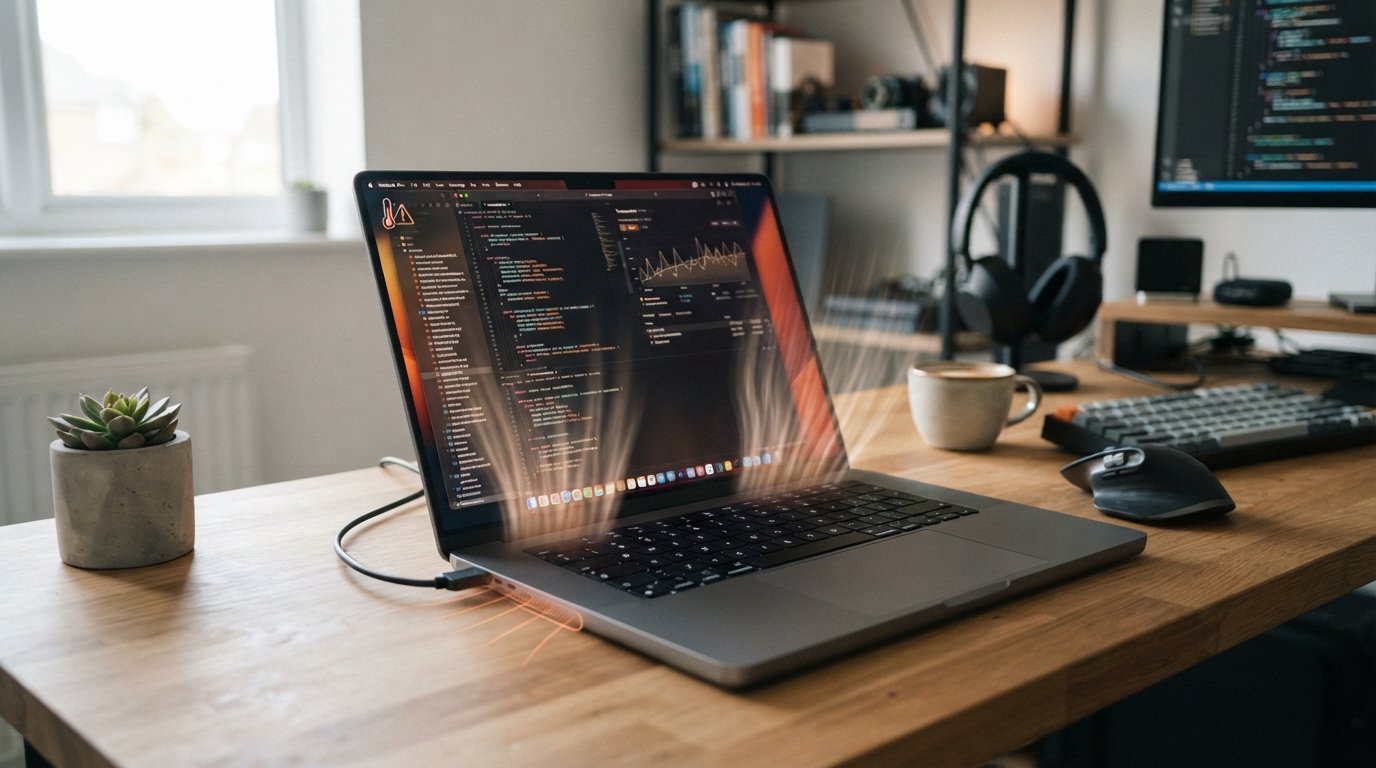
Laptop overheating is a common problem that can affect performance, battery life, and overall hardware health. If your laptop becomes unusually hot, the fan runs constantly, the system slows down, or the laptop suddenly shuts down, excessive heat may be the reason.
The good news is that most laptop overheating problems can be reduced with a few simple maintenance steps. In this guide, we will explain how to fix laptop overheating, why laptops get hot, and what you can do to keep your device running cooler.
Why Is My Laptop Overheating?
Before fixing the problem, it is important to understand what causes excessive heat.
Common causes include:
- Dust blocking the cooling vents
- A dirty or weak cooling fan
- Dried-out thermal paste
- Blocked air vents
- Heavy gaming or demanding software
- Too many background applications
- Using the laptop on a bed or soft surface
- High room temperature
- Outdated drivers or BIOS
- Malware or unwanted programs
- An aging battery
- Hardware problems with the cooling system
A laptop will naturally become warm during normal use. However, very high temperatures, frequent thermal throttling, unexpected shutdowns, or unusually loud fans indicate that something may need attention.
1. Clean the Laptop Air Vents
One of the easiest ways to reduce laptop temperature is to clean the air vents.
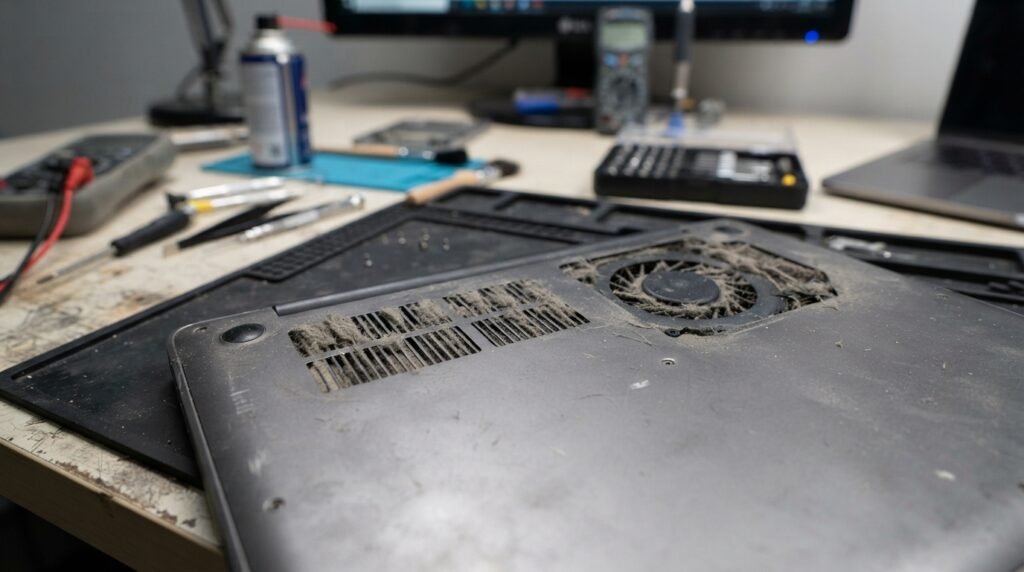
Over time, dust and lint can accumulate around the intake and exhaust vents. This restricts airflow and prevents hot air from leaving the laptop.
What to do:
- Turn off the laptop.
- Disconnect the charger.
- Locate the cooling vents.
- Remove visible dust carefully.
- If you are comfortable doing so, clean the internal fan using appropriate compressed air and proper precautions.
How to fix laptop overheating: Avoid blocking the vents while cleaning.
If the laptop has never been cleaned internally, professional cleaning may be a better option.
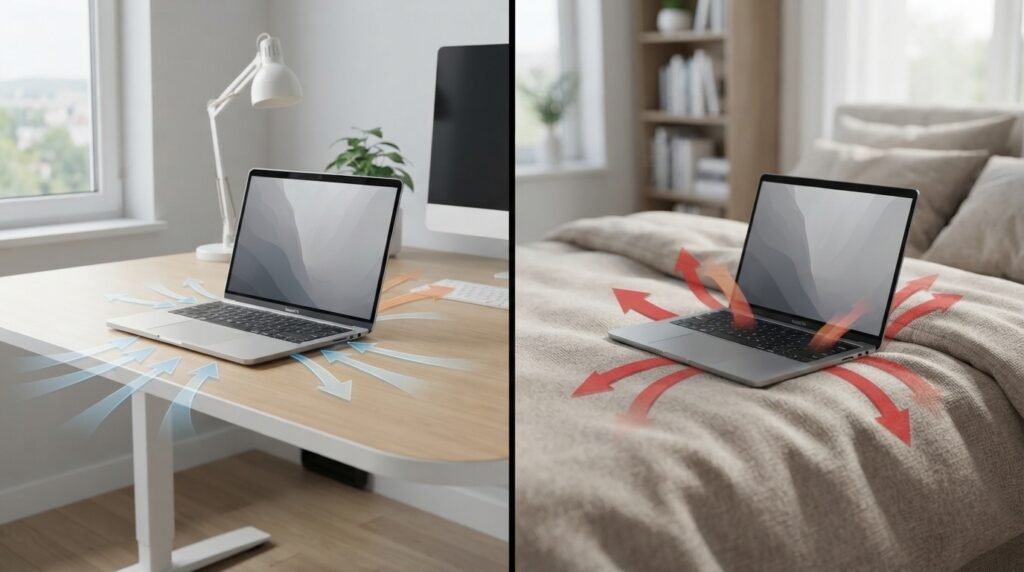
2. Never Use Your Laptop on a Bed or Sofa
Using a laptop on a bed, pillow, blanket, or sofa can cause overheating because soft surfaces can block the ventilation openings.
Instead, place your laptop on:
- A desk
- A hard table
- A laptop stand
- A suitable cooling pad
A hard, flat surface allows air to circulate more effectively.
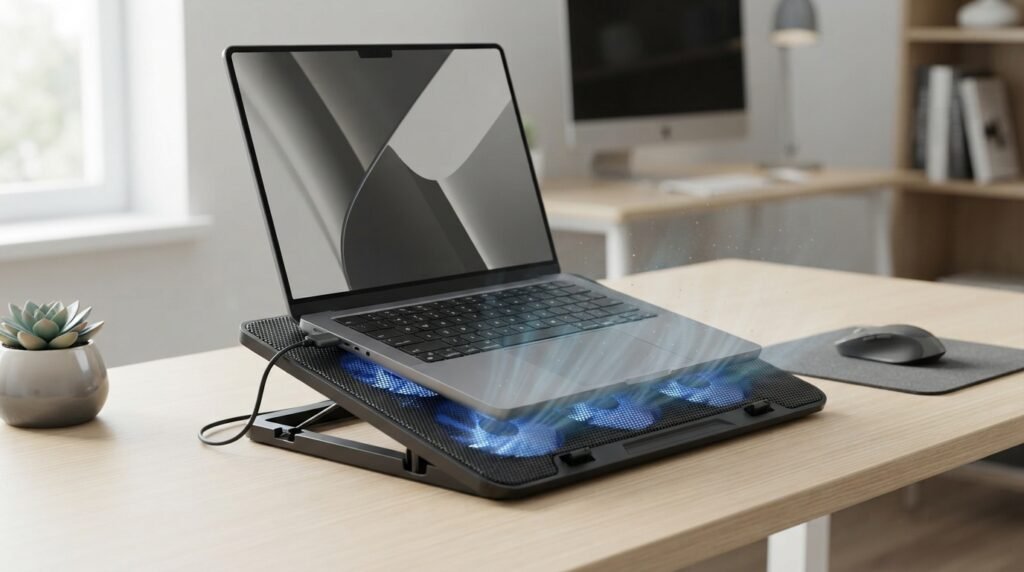
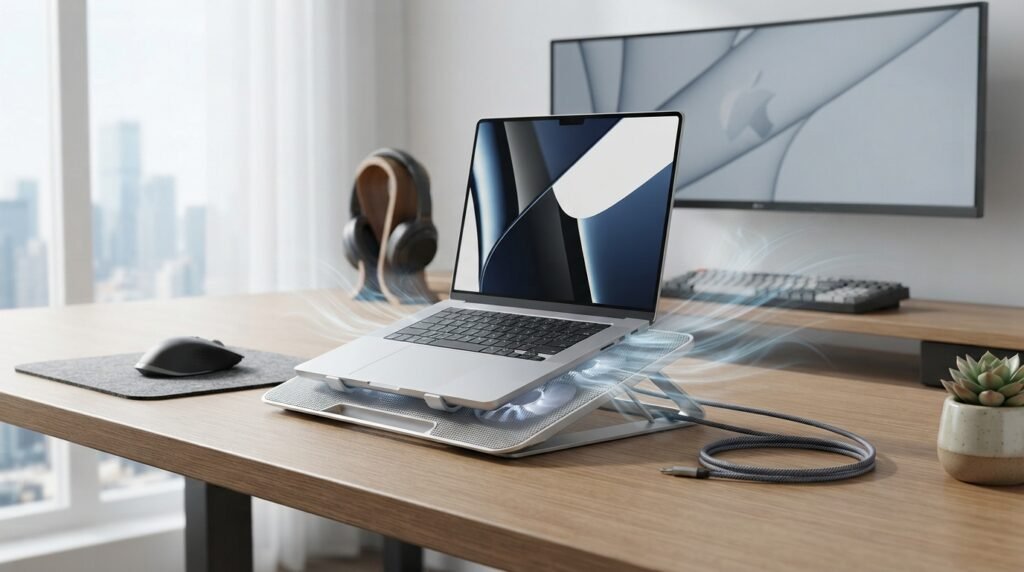
3. Use a Laptop Cooling Pad
A cooling pad can help improve airflow underneath a laptop.
It can be particularly useful if you regularly:
- Play games
- Edit videos
- Run programming software
- Use Photoshop or other demanding applications
- Work for many hours continuously
However, a cooling pad is not a replacement for cleaning a blocked fan or repairing a defective cooling system.
4. Close Unnecessary Background Programs
How to fix laptop overheating: Sometimes the laptop is overheating because the processor is working harder than necessary.
Open Task Manager in Windows by pressing:
Ctrl + Shift + Esc
Look at the Processes tab and check which applications are consuming significant CPU or memory resources.
Close programs you do not need, especially applications continuously using high CPU resources.
Be careful not to end important Windows system processes unless you know what they do.
5. Reduce Heavy CPU and GPU Usage
How to fix laptop overheating: Gaming, video editing, 3D rendering, and other demanding workloads naturally generate more heat.
If your laptop becomes extremely hot during these activities, try:
- Lowering game graphics settings
- Reducing screen resolution
- Limiting FPS
- Closing unnecessary applications
- Using balanced power mode
- Taking regular breaks during long sessions
For everyday tasks such as browsing and document editing, the laptop should generally not need to operate at maximum performance continuously.
6. Change Windows Power Settings
Windows power settings can affect processor performance and heat generation.
Depending on your Windows version, open:
Settings → System → Power & battery
Choose an appropriate power mode.
For everyday work, a balanced or efficiency-oriented mode can help reduce unnecessary power consumption and heat.
When maximum performance is required, you can switch back to a higher-performance mode.
7. Check Whether the Laptop Fan Is Working
The cooling fan plays an important role in removing heat from the CPU and GPU.
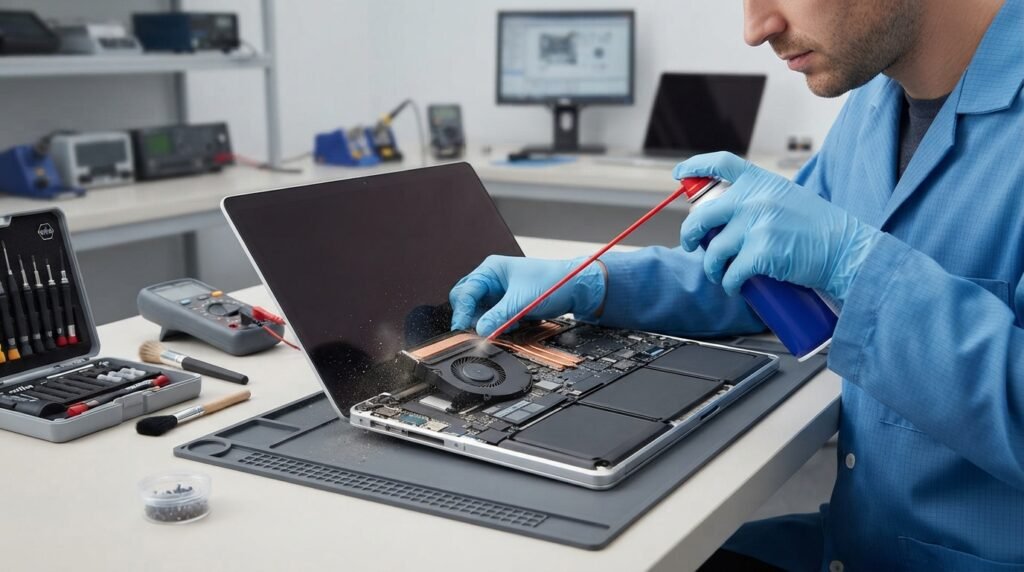
Warning signs of a fan problem include:
- Fan never seems to run
- Fan makes grinding or clicking sounds
- Fan runs extremely loudly
- Laptop becomes very hot despite light use
- Laptop suddenly shuts down
- Performance becomes extremely slow
How to fix laptop overheating: If the fan is damaged or clogged, software adjustments alone may not solve the problem.
A technician can inspect and replace the fan if necessary.
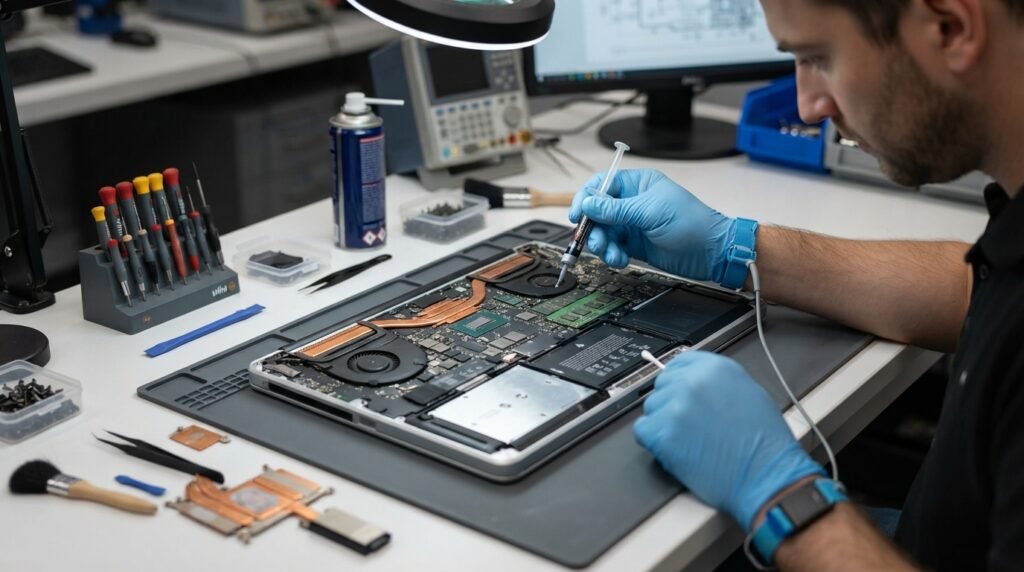
8. Replace Old Thermal Paste
Thermal paste helps transfer heat from the processor to the cooling system.
Over several years, thermal paste can deteriorate, particularly in an older laptop. Replacing it may improve thermal performance when the existing paste has dried out or the heatsink contact is poor.
However, opening a laptop can be risky if you are unfamiliar with its internal components.
If your laptop is still under warranty, check the warranty conditions before opening it.
9. Keep Windows and Drivers Updated
Software and driver updates can sometimes improve system stability, power management, and thermal performance.
Keep these components updated where appropriate:
- Windows
- Graphics drivers
- Chipset drivers
- BIOS/UEFI firmware
How to fix laptop overheating: Only download BIOS and driver updates from the laptop manufacturer’s official support website or another trusted source.
Avoid installing random “driver updater” programs from unknown websites.
10. Scan for Malware
How to fix laptop overheating: Malware can sometimes run processes in the background and consume significant CPU resources.
If your laptop suddenly becomes slow and hot even when you are not doing anything demanding, perform a security scan using a trusted security solution.
Also check your startup applications and remove unnecessary programs from automatically launching with Windows.
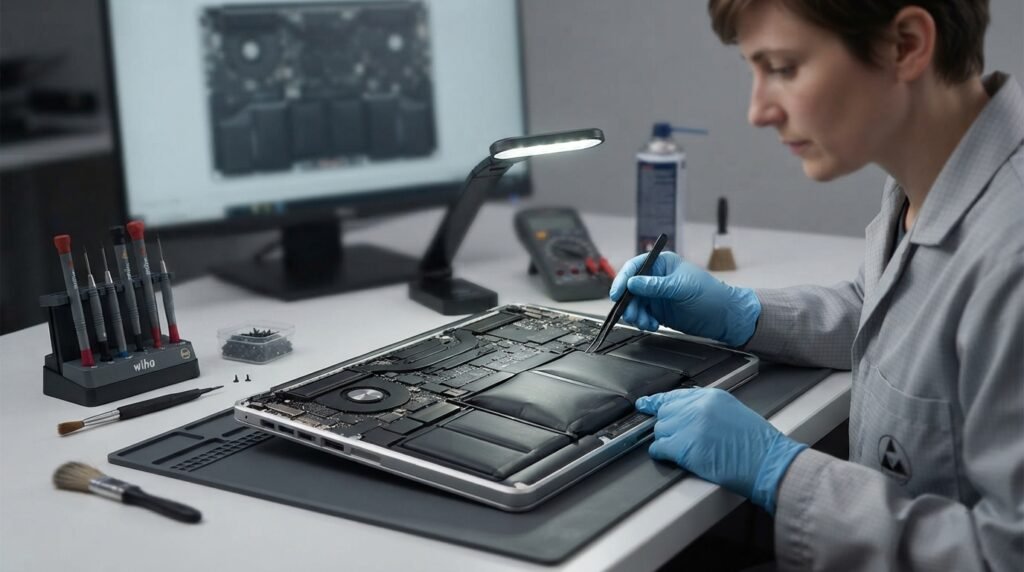
11. Check the Laptop Battery
How to fix laptop overheating: A damaged or aging battery can sometimes cause unusual heat.
Pay attention to warning signs such as:
- Swollen laptop body
- Trackpad or keyboard lifting
- Battery swelling
- Unusual smell
- Excessive heat around the battery area
- Very rapid battery discharge
If you suspect the battery is swollen, stop using the laptop and have it inspected by a qualified technician. Do not puncture or attempt to open a swollen battery.
12. Monitor Your Laptop Temperature
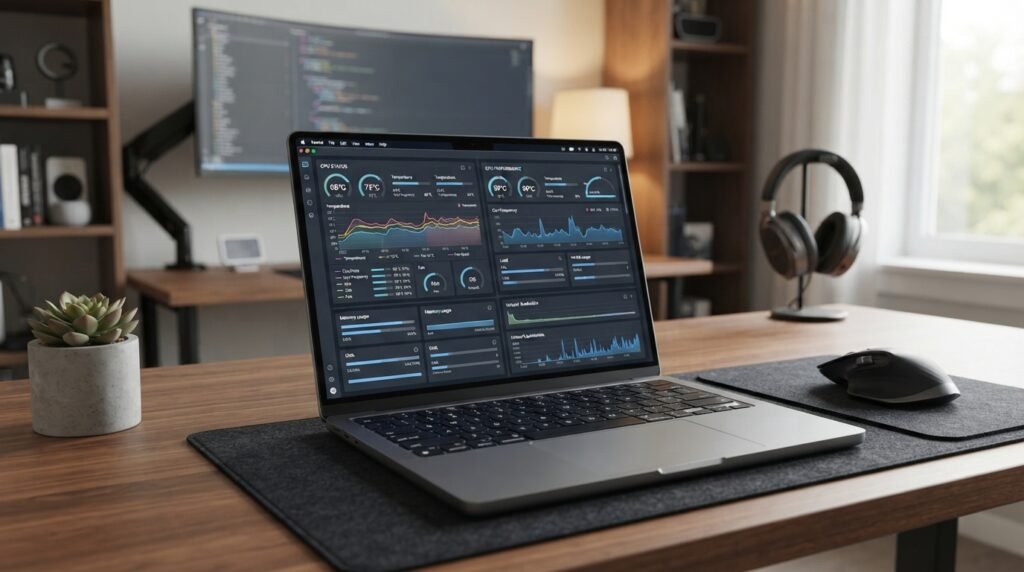
Temperature monitoring can help you determine whether the problem is occasional or persistent.
How to fix laptop overheating: You can monitor CPU and GPU temperatures using reputable hardware-monitoring software.
Remember that temperature limits vary significantly between laptop models and processors. Instead of relying on one universal “safe temperature,” check your laptop or processor manufacturer’s specifications.
If temperatures remain unusually high under normal workloads, the cooling system should be investigated.
How to Fix Laptop Overheating While Gaming
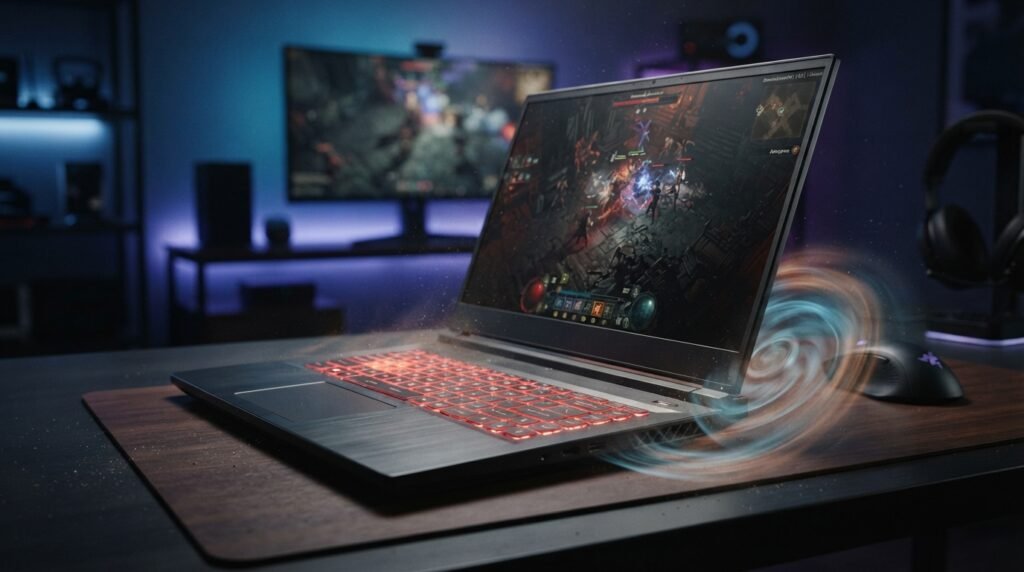
How to fix laptop overheating while gaming: Laptops naturally produce more heat because their processors and graphics chips consume considerable power.
To reduce gaming temperatures:
- Keep the laptop on a hard surface.
- Clean the cooling vents.
- Use a cooling pad if appropriate.
- Lower graphics settings.
- Limit FPS.
- Close unnecessary background applications.
- Keep graphics drivers updated.
- Avoid gaming in extremely hot environments.
- Monitor CPU and GPU temperatures.
- Have the cooling system professionally serviced if temperatures remain excessive.
Some gaming laptops also provide manufacturer-specific performance and fan-control software. Use these tools carefully and avoid aggressive overclocking if your priority is lower temperature and longer hardware life.
How to Fix Laptop Overheating Without a Cooling Pad
How to fix laptop overheating: You don’t necessarily need to buy a cooling pad.
Try these free solutions first:
- Clean the vents.
- Use the laptop on a hard surface.
- Close unnecessary applications.
- Reduce background processes.
- Use a balanced power mode.
- Reduce demanding game settings.
- Keep the room reasonably cool.
- Update drivers and Windows.
- Check whether the fan is functioning correctly.
If the laptop still overheats, the problem may be internal and require cleaning, thermal-paste replacement, fan replacement, or other professional service.
Signs That Your Laptop Is Too Hot
Common warning signs include:
- Very hot keyboard or palm rest
- Constantly loud fan
- Sudden performance slowdown
- Programs freezing
- Unexpected shutdowns
- System restarting during heavy workloads
- Gaming performance dropping after extended use
- Fan running continuously even during light tasks
How to fix laptop overheating: Performance dropping after the laptop becomes hot can be a sign of thermal throttling, where the system reduces performance to control temperature.
When Should You Take Your Laptop to a Technician?
How to fix laptop overheating: Simple cleaning and software adjustments can solve many overheating problems. However, professional assistance is recommended when:
- The laptop shuts down repeatedly because of heat.
- The cooling fan is damaged.
- The fan makes unusual noises.
- The laptop has never been internally cleaned.
- Thermal paste needs replacement.
- The battery appears swollen.
- The laptop becomes extremely hot during basic tasks.
- Temperatures remain high despite cleaning and software adjustments.
Trying to repair delicate laptop components without the appropriate experience can cause additional damage.
Final Thoughts
Learning how to fix laptop overheating does not always require expensive repairs. In many cases, cleaning dust, improving airflow, reducing unnecessary background activity, and changing power settings can make a noticeable difference.
However, persistent overheating should not be ignored. Excessive heat can contribute to performance problems and may shorten the lifespan of components over time. If basic troubleshooting does not solve the problem, have the laptop’s fan, heatsink, thermal paste, and battery checked by a qualified technician.
The best approach is simple: keep the vents clean, maintain good airflow, avoid unnecessary workloads, and monitor unusual temperature or performance changes.
Frequently Asked Questions
1. Why does my laptop get hot so quickly?
How to fix laptop overheating: Your laptop may be getting hot because of blocked vents, dust, heavy CPU/GPU usage, a faulty fan, dried thermal paste, or poor airflow.
2. Can a cooling pad fix laptop overheating?
A cooling pad can improve airflow and may reduce temperatures, but it cannot fix a blocked fan, damaged cooling system, or failing hardware.
3. Is it normal for a laptop to get warm?
Yes. Laptops generate heat during normal operation. The concern is excessive heat accompanied by symptoms such as thermal throttling, fan problems, or unexpected shutdowns.
4. How can I cool down my laptop quickly?
Stop demanding applications, move the laptop to a hard surface, improve airflow, and allow it to cool naturally. Avoid placing it on a bed or covering the vents.
5. Should I replace laptop thermal paste?
If an older laptop is overheating and its cooling system is clean and functioning correctly, replacing degraded thermal paste may help. It is best performed by someone experienced with laptop hardware.
6. Can dust cause laptop overheating?
Yes. Dust can restrict airflow and reduce the effectiveness of the cooling system, causing the laptop to run hotter.
7. Does laptop overheating reduce performance?
Yes. Modern processors can reduce their operating speed when temperatures become too high. This is known as thermal throttling.
8. Can overheating damage a laptop?
Repeated excessive heat can contribute to hardware problems and reduce component longevity. Modern laptops have thermal protection, but persistent overheating should still be investigated