Artificial intelligence is changing the way people create videos. In the past, making a professional video required a camera, editing software, lighting equipment, and technical skills. Today, AI video-generation tools make it possible to turn simple ideas into impressive visual content with much less effort.
One tool attracting attention is Google Flow AI. It helps users create cinematic video clips, develop scenes, generate visual assets, and refine their projects using AI-powered creative tools. Whether you are a content creator, blogger, student, digital marketer, or business owner, Flow can help you bring your ideas to life.
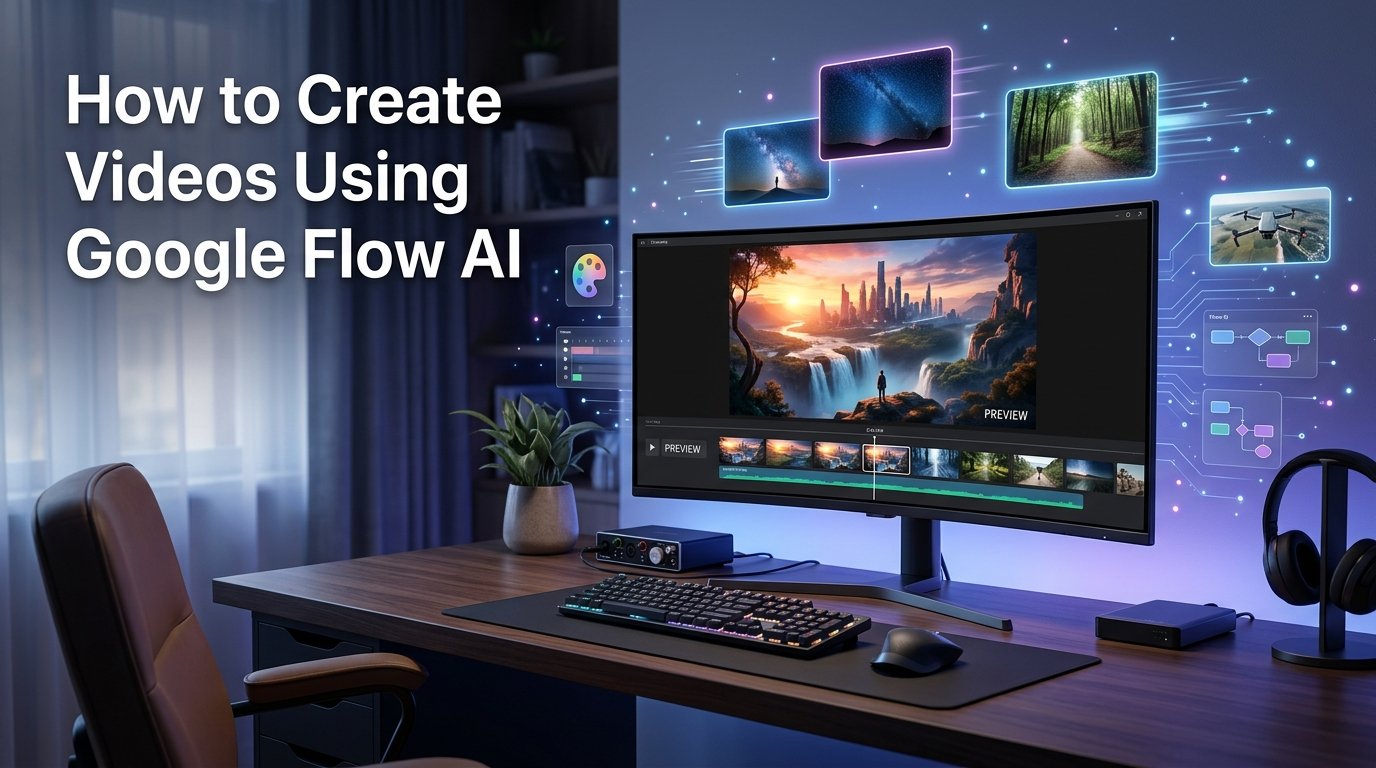
In this guide, you will learn how to create videos using Google Flow AI, write effective prompts, edit generated clips, and use the results for websites, YouTube, and social media.
What Is Google Flow AI?
Google Flow is an AI-powered filmmaking and creative workspace developed by Google. It uses Google’s generative AI technology to help people create and refine visual content through text prompts, images, and other supported inputs.
Instead of recording every scene yourself, you can describe the scene you want and let the AI generate a video based on your instructions. Depending on the available model and features, you can also edit existing content, adjust camera movement, and build a sequence of related scenes.
Google continues to expand Flow’s capabilities, including image creation, video editing, and tools for greater creative control.
Some useful capabilities include:
- Text-to-video generation: Turn written descriptions into video scenes.
- Image-to-video creation: Animate supported images to create moving scenes.
- Camera controls: Guide the camera’s position, angle, or movement when supported.
- Scene building: Arrange clips and develop a more complete visual story.
- AI-powered editing: Make changes to supported images or videos using natural-language instructions.
- Visual consistency: Use reference images and supported workflows to help maintain the appearance of characters or objects across scenes.
You can explore the tool on the official Google Flow website. Features, usage limits, and access requirements may vary by account, subscription, model, and country.
Why Should You Use Google Flow AI?
Creating videos manually can take considerable time and money. Flow offers another way to develop visual content, especially when you need creative scenes that would be difficult or expensive to film.
Here are some reasons to consider using it.
1. Create Videos From Text Prompts
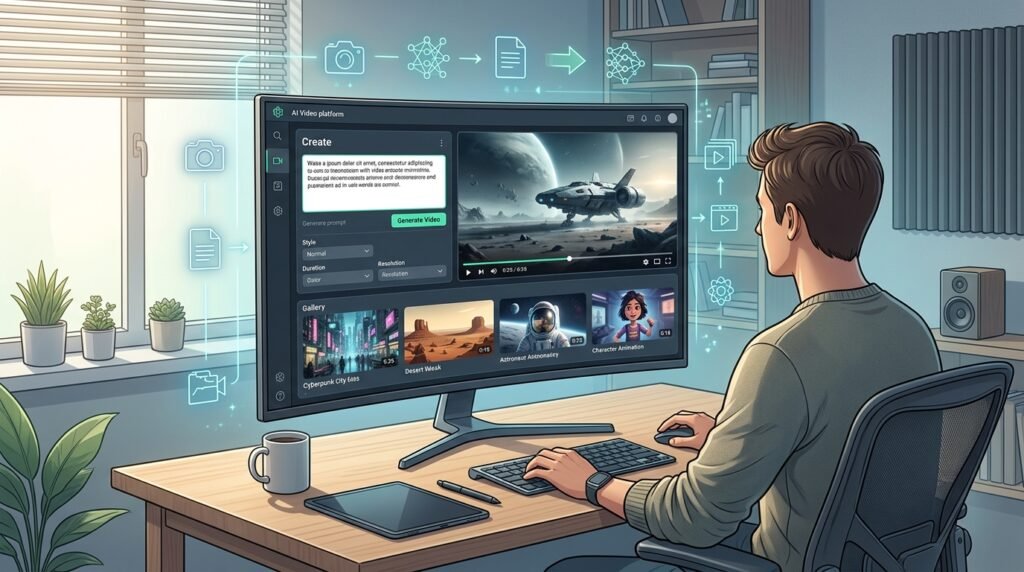
You can describe a scene in ordinary language instead of recording it with a camera. For example, you could request a cinematic view of a modern city at sunrise or a close-up shot of a smartphone on a desk.
The more clearly you describe your idea, the easier it is to guide the result.
2. Save Time During Content Creation
AI-generated footage can help you create visual material for articles, advertisements, presentations, and social media posts. You may still need editing and revisions, but you can reduce the time spent producing certain scenes.
3. Explore Different Creative Styles
You can experiment with realistic footage, animation, futuristic environments, product scenes, and cinematic lighting. This makes it easier to explore several creative directions before choosing a final version.
4. Support Digital Marketing
Small businesses can use AI-generated scenes for promotional content, product storytelling, and campaign concepts. For example, an online technology store might create a futuristic scene featuring a laptop or smartphone.
Always check the accuracy of product details and avoid presenting fictional product capabilities as real.
5. Create Content for Different Platforms
Depending on the available generation settings, you may create landscape videos for YouTube or wider screens and vertical videos for short-form platforms. Check the output dimensions before publishing.
What Do You Need Before Using Google Flow?
Before starting your first project, prepare a few basic things.
- A Google account that can access Flow.
- A computer or compatible mobile device with a supported browser or app.
- A clear idea of the video you want to create.
- A suitable text prompt describing your scene.
- Reference images, if your chosen workflow supports them.
- Sufficient generation credits or an eligible subscription, if required.
You do not need professional filmmaking experience to begin. However, understanding basic concepts such as camera angles, lighting, and scene composition can improve your results.
How to Create Videos Using Google Flow AI Step by Step
Follow these steps to create your first AI video.
Step 1: Open Google Flow
Visit the official website:
Sign in with your Google account and follow the instructions displayed on the screen. If Flow is unavailable for your account, review Google’s current access requirements and supported regions.
Once you enter the workspace, explore the available options for creating images, generating videos, or working with existing visual assets.
The Google Flow AI may change exact interface as Google introduces new features.
Step 2: Decide What Type of Video You Want
Before writing your prompt, decide what you want the final video to communicate.
For example, you might want to create:
- A technology video for your website.
- A product advertisement for an online store.
- A cinematic nature scene.
- A YouTube Shorts background video.
- An educational explainer.
- A promotional video for a small business.
Having a clear purpose helps you choose the right subject, visual style, aspect ratio, and length.
For example, if you are creating a video for a technology article, you might choose a modern workspace with a laptop, AI-inspired graphics, and smooth camera movement.
Step 3: Write a Detailed Video Prompt
A prompt is a written instruction that tells the AI what to generate.
A weak prompt might say:
“Create a video about technology.”
This gives the AI very little information about the scene.
A stronger prompt might say:
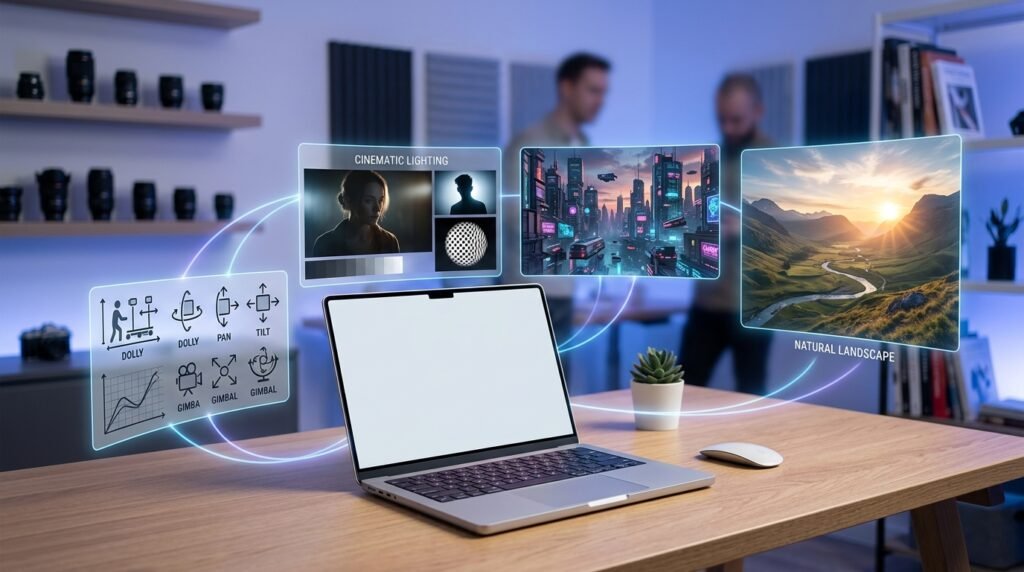
“Create a cinematic video of a modern technology workspace at night. A sleek laptop sits on a clean desk, displaying abstract artificial intelligence graphics. Blue and purple ambient lighting illuminates the room. The camera slowly moves toward the laptop while subtle reflections appear on the desk. Photorealistic style, realistic materials, smooth movement, professional technology advertisement, no visible brand logos.”
This prompt provides information about the subject, environment, lighting, camera movement, and overall style.
For better results, include these six elements:
- Subject: What should appear in the video?
- Action: What should the subject do?
- Environment: Where does the scene take place?
- Camera movement: Should the camera zoom, pan, or move forward?
- Lighting: Should the scene look bright, dark, dramatic, or natural?
- Visual style: Should the video be realistic, animated, cinematic, or futuristic?
Google also recommends using detailed prompts and experimenting with different visual instructions to improve creative control.
Step 4: Choose the Appropriate Creation Mode
Select the video-generation or editing workflow that matches your project.
Depending on the options available in your account, you may be able to generate a video from text, animate an image, use reference images, or work with existing clips.
If you want to generate a scene from scratch, begin with a text-based prompt when that option is available.
If you already have an image of a product or environment, consider an image-based workflow. This can be useful when you want the video to follow a particular visual reference.
Review the available model and output settings before generating your video.
Step 5: Generate Your First Video
Enter your prompt into the appropriate field and choose the available settings.
These may include a model, aspect ratio, resolution, or other generation controls, depending on the workflow.
Start the generation process and wait for the result.
Do not expect every attempt to be perfect. AI-generated videos may contain unusual movements, inconsistent objects, distorted details, or visual elements that do not match your prompt.
Treat the first result as a draft rather than a finished production.
Step 6: Review the Generated Video
Watch the entire clip carefully.
Ask yourself the following questions:
- Does the video show the subject I requested?
- Is the movement natural and believable?
- Are the lighting and camera movement appropriate?
- Does the scene match my article or marketing message?
- Are there unwanted objects or visual errors?
- Is the video suitable for my intended platform?
If something looks wrong, revise the prompt and generate another version when appropriate.
For example, if the camera moves too quickly, you can try adding an instruction such as “slow, steady camera movement with a smooth forward dolly.”
Specific corrections are generally more useful than rewriting the entire prompt without identifying the problem.
Step 7: Improve the Video With AI Editing Tools
Flow offers editing capabilities that can help you refine visual content. The exact tools depend on the model and workflow available to you.
Depending on the current interface, you may be able to modify objects, adjust camera movement, refine images, or extend a scene.
For example, you could request a different background, change the lighting, or continue an existing scene. Review the generated result after each change because editing may affect other parts of the image or video.
Google’s official Flow updates describe additional creative controls, including more precise video editing and improved ways to continue or refine clips.
Step 8: Create Multiple Scenes for a Longer Video
A single AI-generated clip may not be sufficient for a complete YouTube video or detailed tutorial.
Instead, divide your idea into several short scenes.
For example, a video about artificial intelligence could include:
Scene 1: Introduction
A futuristic digital environment with glowing data patterns.
Scene 2: Everyday applications
A person using a laptop in a modern workspace.
Scene 3: Business applications
A small business owner reviewing digital analytics on a computer.
Scene 4: Conclusion
A cinematic view of a connected digital world.
Generate each scene separately when appropriate, then arrange the clips in a video editor. Use consistent descriptions for recurring characters, objects, lighting, and visual style.
Flow’s scene-building and supported reference workflows can help you develop a more connected visual sequence.
Step 9: Add Voice-Over, Music, and Captions
A video becomes more useful when its visuals support a clear message.
Depending on the workflow, Flow may offer AI-generated audio or dialogue features. You can also use a separate editing application to add narration, background music, sound effects, and captions.
For educational content, a simple structure works well:
- Start with a short hook.
- Explain the main idea.
- Show examples.
- Finish with a conclusion or call to action.
Always review generated speech for pronunciation and accuracy. Use music and sound effects that you have permission to publish.
Step 10: Export and Publish Your Video
When the video looks right, use the available export or download option.
Check the final resolution, aspect ratio, audio, and file format. Some output options may require additional credits or a particular subscription.
Before publishing, watch the exported file from beginning to end.
You can then use it in a website article, a YouTube video, a social media post, or a marketing campaign.
Five Ready-to-Use Google Flow AI Video Prompts
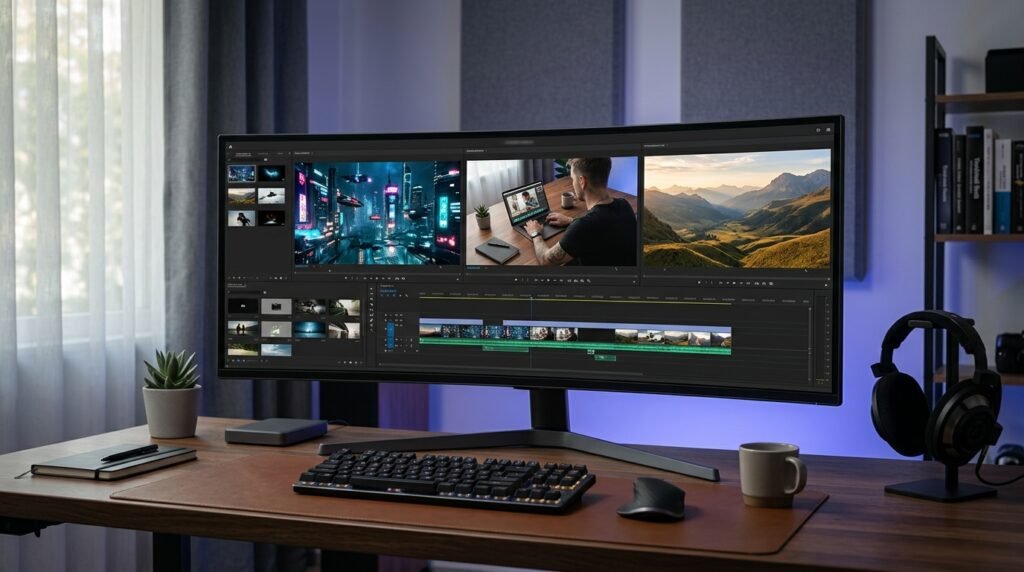
Prompt 1: AI Technology Video
“Create a cinematic technology video showing artificial intelligence transforming a modern digital workspace. Display a laptop, abstract neural-network graphics, floating data visualizations, and subtle blue lighting. Use smooth camera movement, realistic reflections, detailed materials, and a polished technology-documentary aesthetic. No readable text, no logos, and no watermarks added by the prompt.”
Best for: AI articles, technology websites, and educational content.
Prompt 2: Smartphone Advertisement
“Create a premium cinematic advertisement featuring a sleek modern smartphone standing on a reflective dark surface. Soft studio lighting highlights the device’s edges while the camera slowly rotates around it. Add elegant reflections, a clean background, realistic materials, and smooth professional product-shot movement. Do not include brand names, inaccurate interface text, or unsupported product claims.”
Best for: Smartphone reviews, product campaigns, and technology blogs.
Prompt 3: Laptop and Digital Workspace
“Generate a realistic cinematic video of a modern laptop on a minimalist office desk. Morning sunlight enters through a large window while a professional works in the background. The camera slowly moves toward the laptop screen. Include natural lighting, realistic textures, subtle depth of field, and a calm professional atmosphere.”
Best for: Laptop reviews, computer tutorials, and productivity articles.
Prompt 4: Futuristic City
“Create a photorealistic cinematic view of a futuristic city at sunset. Tall modern buildings reflect warm sunlight, autonomous vehicles move smoothly along clean roads, and subtle digital displays illuminate the environment. Use a wide establishing shot followed by a slow aerial camera movement. Maintain realistic scale, atmospheric depth, and coherent motion.”
Best for: Future technology, smart cities, and innovation videos.
Prompt 5: Educational Explainer
“Create a clean, engaging educational video showing how data moves through a computer network. Visualize computers, servers, and connected devices communicating through glowing lines. Use clear compositions, smooth transitions, balanced lighting, and a modern educational animation style. Keep the visual elements organized and leave clear space for captions to be added during editing.”
Best for: Computer science tutorials, IT articles, and online learning.
Tips for Getting Better Results With Google Flow AI
Creating an effective AI video is not only about writing a long prompt. Clear instructions and careful review also matter.
Be Specific About Movement
Describe what the subject and camera should do. For example, “the camera slowly pans from left to right” is more precise than “make the video dynamic.”
Avoid Overloading a Single Scene
A prompt containing too many characters, objects, actions, and camera changes may produce inconsistent results.
Start with one main action and add complexity gradually.
Keep Your Visual Style Consistent
When creating multiple clips for the same project, repeat the important details about characters, clothing, objects, lighting, and setting.
Use reference images or continuity features where supported.
Generate Drafts Before High-Quality Versions
If your account provides lower-resolution draft generation, use it to test composition and movement before spending more credits on a higher-quality version.
Google announced draft-generation and higher-resolution export options in its Flow updates. Availability can depend on the current interface and account.
Review Every Generated Clip
AI video tools can make mistakes with hands, faces, text, product shapes, and physical movement. Inspect the final result before publishing it, particularly if it represents a real product or business.
Is Google Flow AI Free to Use?
Google Flow’s pricing and access conditions can change over time. Some features may require an eligible Google AI subscription or use generation credits.
Before starting a large project, visit the official Flow website and check the current options available to your account.
If you are using Flow from Pakistan, verify regional availability, payment requirements, and the features included in your subscription. Do not assume that a feature available to another user will automatically be available to you.
For a beginner, the sensible approach is to test a small project first and understand the usage limits before planning a complete video series.
Common Mistakes to Avoid
New users often make a few avoidable mistakes when creating AI videos.
- Writing vague prompts: Include the subject, action, environment, and visual style.
- Expecting a perfect first result: Review and refine your output.
- Ignoring continuity: Reuse important character and scene details across related clips.
- Adding too much action: Keep individual scenes focused.
- Publishing without reviewing: Check visual errors, audio, captions, and factual claims.
- Ignoring usage rights: Follow the applicable terms for generated content and any uploaded assets.
- Using AI footage without context: Make sure the visuals accurately support the information in your article.
Frequently Asked Questions
1. What is Google Flow AI used for?
Google Flow is used to create and refine AI-generated visual content, including video scenes. It can support filmmaking, product concepts, promotional content, and other creative projects.
2. Can beginners create videos with Google Flow?
Yes. Beginners can start by describing a simple scene in a text prompt and refining the result. Understanding basic camera and lighting terms can help, but professional filmmaking experience is not required.
3. Can Google Flow create videos from images?
Flow supports image-based creative workflows, including animating images through compatible video-generation features. The exact options depend on the model and tools available in your account.
4. Can I use Google Flow videos on YouTube?
You can use generated videos in YouTube projects, subject to Google’s applicable terms and YouTube’s content policies. Review the video for accuracy, copyright concerns, and any required disclosure of realistic altered or synthetic content.
5. Can Google Flow generate audio?
Audio and dialogue capabilities are available in supported Flow workflows, but results and controls may vary. You can also add narration and licensed music in a separate video editor.
6. How can I make longer videos with Google Flow?
Plan the video as a sequence of scenes, generate individual clips, and assemble them using available scene-building tools or an external editor. Keep the visual style and recurring elements consistent.
7. Is Google Flow available in Pakistan?
Availability and access requirements can change. Check the official Flow website and current Google AI subscription information to confirm access for your account in Pakistan.
Final Thoughts
Google Flow AI offers an exciting way to turn creative ideas into video scenes without relying entirely on traditional filming equipment. From technology explainers and product advertisements to educational clips, it can help creators explore new ways to communicate visually.
The best way to learn is to start with a simple idea, write a clear prompt, generate a draft, and improve it through careful editing. As you become more familiar with camera movement, scene composition, and visual consistency, you can begin creating more ambitious projects.
If you run a technology website such as AIOGuides.com, experiment with short videos that complement your articles and help readers understand complex topics.
Ready to create your first AI video? Visit Google Flow, explore the tools available to you, and bring your next creative idea to life.